Use the table waitlist
When a day or time is full, take names for a table and work through the queue.
Updated 22 October 2026
When there are no tables left, the waitlist lets guests leave their details. Large parties are handled separately: a party at or above your large-party size is, by default, asked to contact you instead of joining the waitlist (or can send a request): see Decide what large parties see when no table is free. The booking page only offers the waitlist when there is still a time to come on that day: once every time today has passed (or is inside the notice period), the guest sees "There are no more times left on this date" and no waitlist button, because there would be nothing to wait for. If a table opens up, TableSoul can book them in for you. The Waitlist menu item only appears if your plan includes it.
This is the waitlist for normal table bookings. For events, see Run a waitlist for a full event.
Guests can leave the waitlist themselves
Every guest who joins the waitlist gets a private link: on their confirmation screen (Leave the waitlist) and, if they gave an email, at the bottom of the "You're on the waitlist" email. It opens a page in your colours with what they asked for and a Leave the waitlist button (with a "Are you sure?" step). On your Waitlist page they then show as Left, with a grey card and a LEFT badge, and you can filter by Left. A guest who has left is not booked automatically and no longer holds a freed table. Undo — back to waiting puts them back, and Remove deletes the entry.
If the guest has already been booked from the waitlist, the same link says so and takes them to that booking's own page, where they can change or cancel it. Guests who joined before this feature existed have no link.
Put a booked guest back on the waitlist
On a guest who has been booked (or has expired) press Undo — back to waiting. If they were booked from the waitlist and that booking is still on a table, TableSoul asks first: putting them back cancels that booking, frees the table, and emails them that it was cancelled, so the table is genuinely free for others (and shows as free on the booking page). Without this the guest would look as if they were still waiting while their old booking kept the table. With automatic booking on, they are booked again as soon as a table fits, which can be straight away if the table you just freed fits them. If they paid a deposit on that booking, cancel it from By date instead so the deposit is refunded, then put them back.
Change a waiting guest's details
Click a guest's card on the Waitlist page (while they are still Waiting or Contacted) to open it and change what they asked for: the number of guests, the service, the day and time, and the notes. You can also correct the guest's name, phone and email (these are the guest's own record, so a change shows on their other bookings too). Press Save changes. The entry keeps its place in the queue, and with automatic booking on, a freed table is matched to the new time. You can only move it to a time that is still to come. The buttons on the card (Book, Mark as contacted and so on) work as usual and don't open it. Guests who are already booked or have expired can't be edited: press Undo — back to waiting first (see below).
How people join
When one service is full but another still has times (for example lunch is open and dinner is fully booked), the guest sees the free times and, below them, a Dinner is fully booked card with Join the Dinner waitlist. It only appears when the waitlist is on, the party isn't a large one, no area is chosen, and that service still has a time ahead.
- Online: when no times are available the booking page offers Join the waitlist for this date. They give a name, email or phone, and the party size. They get a confirmation email if they gave an address.
- By staff: in + Booking, when no times are available, press Add to the waitlist instead. Choose a preferred time and enter at least a phone or an email.
When a table frees up
By default TableSoul books waiting guests automatically. Every couple of minutes it looks at the waitlist, oldest first. For the first guest whose party fits a free table at the time they asked for, it:
- books the table and marks the entry Booked,
- sends the guest the normal confirmation email (and text, if they gave a number) with a note that it came from the waitlist and a button to change or cancel,
- sends your staff the usual new-booking email, and notes "Booked automatically from the waitlist" on the booking.
While a waiting guest could be booked, the freed time is held for them. From the moment a table opens up until the next check books the waiting guest (a couple of minutes), the booking page doesn't offer that time to other guests and an online booking for it is refused, so a stranger can't take the table the waitlist was about to give. Staff are never held back and can still book it in + Booking. The hold only applies when it is really for someone: a waiting guest who is already booked at that time, has no email or phone, wants a service that needs approval, or whose party is too big for the table holds nothing.
A guest who already has a booking at that time is skipped, because booking them again would double-book them. If a waiting guest is still waiting and you expected them to be booked, check whether they have a booking for the same time (By date, or the Customers page); cancel or move that booking and the next check books them, usually within a minute or two.
A party that is too big for what is free is passed over, and the next guest is tried. Entries whose time has passed are marked Expired. Services that need your approval, and guests with no email or phone, are left for you. If a deposit would apply, the guest is sent a link to pay it within 2 hours instead of being confirmed at once.
To switch it off, go to Settings > Taking bookings > When a table frees up and choose I will do it by hand.
Work the list
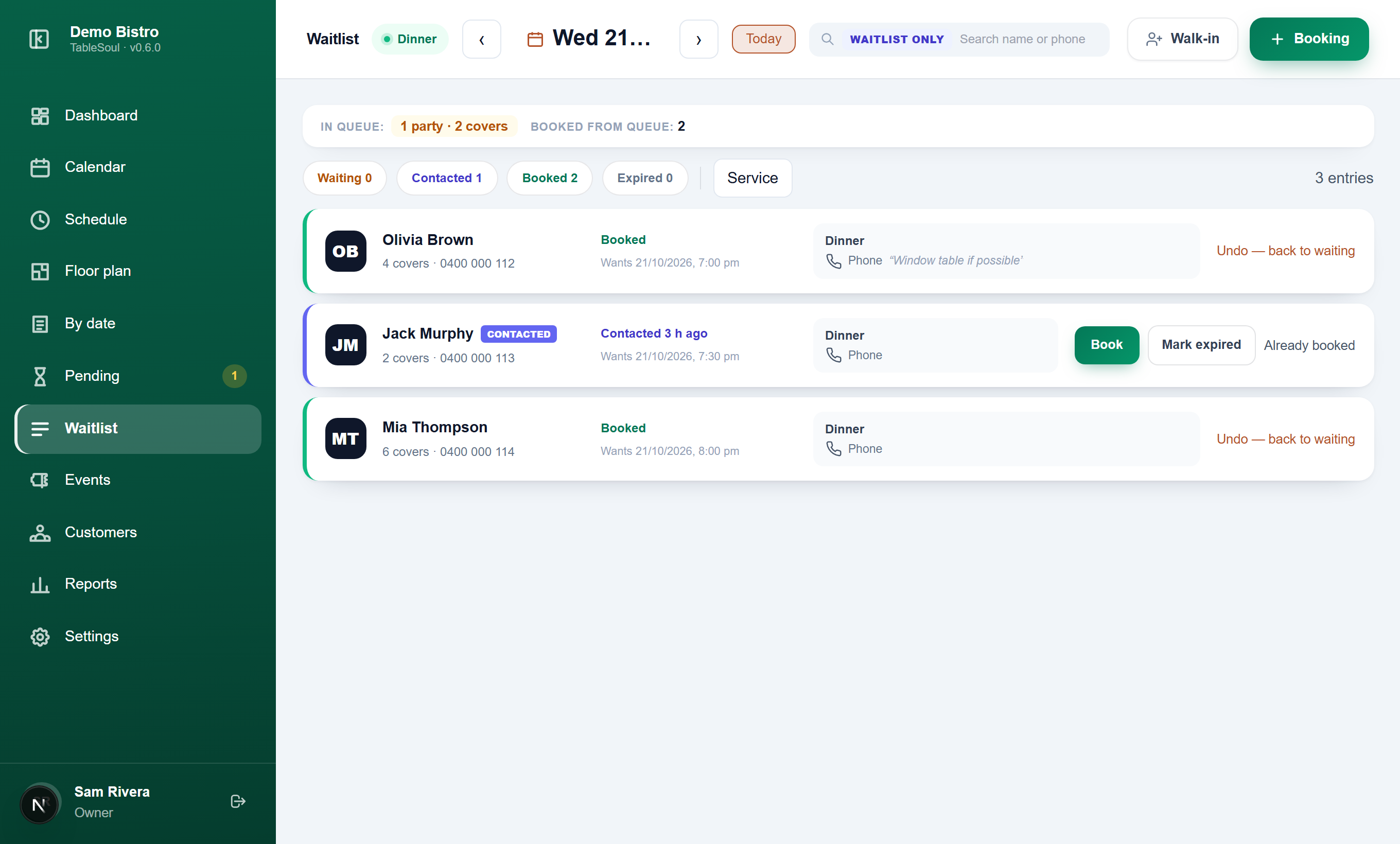 The waitlist
Entries are ordered by the date and time the guest wants, then by who joined first.
The bar shows In queue, Longest wait and Booked from queue. Filter by Waiting, Contacted, Booked and Expired.
Each entry offers:
| Button | What it does |
|---|---|
| Book | Opens a New booking with the guest, party size, date and time filled in. Choose the table and time. Saving it marks the entry Booked. |
| Mark as contacted | Records that you've been in touch with them. |
| Already booked | Closes the entry if they booked another way. |
| Mark expired | Closes an entry that is no longer wanted. |
| Left (status) | The guest left the waitlist themselves, from their link. Undo puts them back. |
| Undo, back to waiting | Reverses a Booked or Expired entry. For a guest booked from the waitlist it also cancels that booking and frees the table, after asking (see below). |
| Remove | Deletes the entry permanently. |
If automatic booking is off: TableSoul does not contact a waiting guest when a table frees up, so you need to contact them yourself, then mark them contacted. Entries don't expire on their own either.
The numbers
The Waitlist count on the menu and Dashboard counts only guests who are still Waiting for today or later.
Did this answer your question?