Take a phone booking
Add a booking for a guest who rings or walks up, including finding returning guests and avoiding double bookings.
Updated 24 October 2026
Use + Booking whenever a guest books by phone, in person or by message.
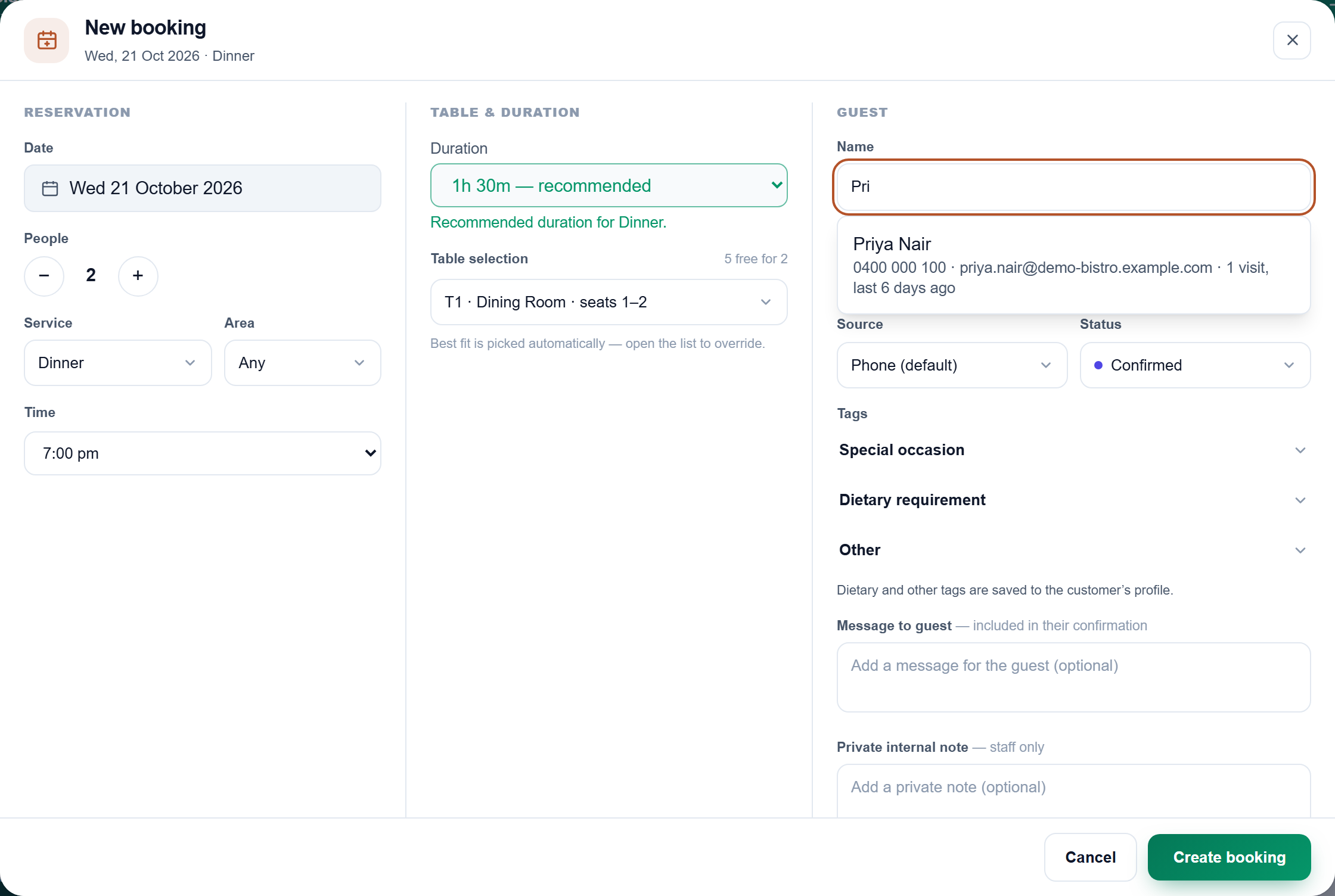 The New booking window
Step by step
- Press + Booking. The date and service are filled in for you; change them if needed.
- Choose the number of people, the service (for example Dinner) and the time.
- Pick an area if the guest has a preference. Leave it on Any to let TableSoul choose.
- Check the table. The best fit is picked automatically; open the list to choose a different one.
- Fill in the guest's details on the right, then press Create booking.
Finding a returning guest
Start typing in Name, Phone or Email. If the guest has booked before, a list appears showing their phone, email, how many times they have visited and when they were last in.
- Click the right person to fill in their name, phone, email and saved dietary tags.
- Two guests with the same name appear as two entries. Check the phone or email to pick the right one.
- Typing a new name that matches nobody simply creates a new guest.
Note: Changing a guest's phone or email in this window only affects this booking. To update their profile, edit them from Customers.
Required fields
A booking you take here, by phone or in person, follows exactly the same rules as one a guest makes online. (A walk-in is different: it is never forced to give a phone or an email.) It always needs a phone number or an email, and your venue can also require a phone, an email or a private note. Required boxes say (required) inside them; the phone and email boxes say required if no email / required if no phone when either one will do. If you press Create booking with one empty, it turns red and the page scrolls to it.
Owners and managers can change which details are required in Settings > Taking bookings (under "Details guests must provide"). See Booking rules, required details and spam protection.
If the guest already has a booking
If the same guest already has a booking that overlaps this time, a red box appears under their phone and email and Create booking is switched off. This stops accidental double bookings.
If you really do want a second booking (for example they are reserving two tables), tick the box in the red message and the button comes back.
Telling the guest
Leave Text confirmation and Email confirmation ticked to send the guest their confirmation. Untick them to send nothing.
Did this answer your question?