Booking rules, required details and spam protection
Choose what guests and staff must fill in, how guests change bookings themselves, and protect your forms from spam.
Updated 24 October 2026Managers and owners only
Four settings pages control the rules around bookings.
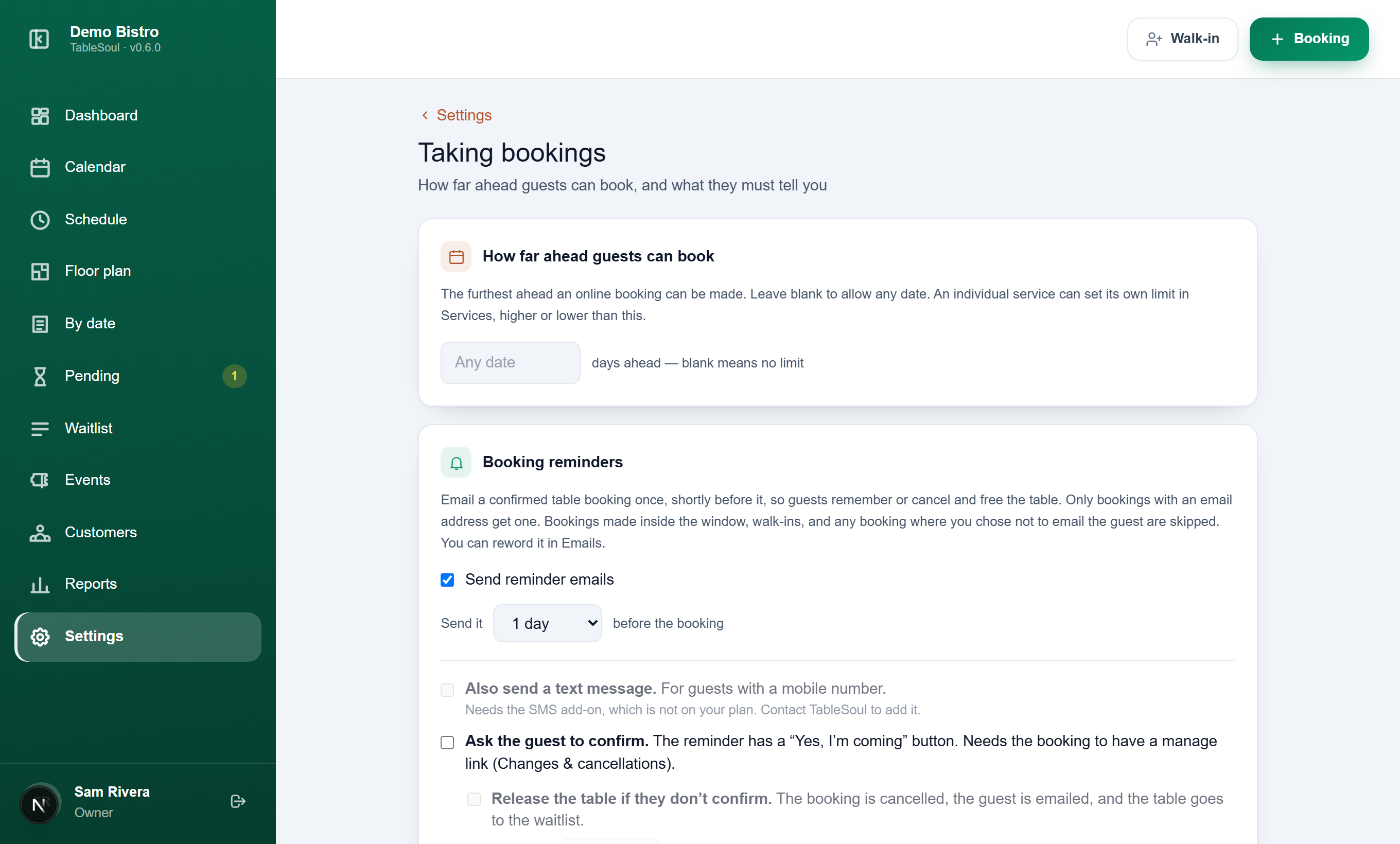 Taking bookings: details guests must provide
Taking bookings
Settings > Taking bookings > Details guests must provide chooses what is required on a booking, whether the guest books online or staff take it by phone or in person:
- Always require a phone number
- Always require an email address
- Always require a note (occasion, allergy, seating request)
All start off. Either way, a booking always needs a phone number or an email so you can reach the guest and they get their cancel link. A booking a staff member takes by phone follows exactly the same rules as one made online.
How far ahead guests can book sets the default window in days. Leave it blank for no limit. A service can set its own.
Walk-ins
Settings > Walk-ins has two cards:
- Seating a walk-in that doesn't fit: tick Let staff seat a walk-in outside a table's seat range to allow staff to override a table's seat limits (on by default). They still have to confirm each time.
- Details required for walk-ins: a walk-in follows the booking rules above by default, except that it is never forced to give a phone or an email. Tick Choose different details for walk-ins to set them separately: A phone or an email (at least one, either will do, so every walk-in leaves some way to reach them), or Phone, Email and Note on their own. While A phone or an email is ticked, the separate Phone and Email boxes are greyed out (hover to see why). Leave everything off and a walk-in needs only a name.
When a required box is empty in the booking form it turns red.
Changes and cancellations
Settings > Changes & cancellations controls what guests can do from their confirmation email.
- Let guests reschedule or cancel from their confirmation email (on by default).
- Stop letting them change it this close to the booking: a number of minutes. 0 means right up to the start time.
- When it's too late to change: the message guests see after the cutoff. You can show your phone number (on by default) and email (off by default), and there's a live preview.
- Asking guests why they cancelled: let them type anything, pick from your list or type their own, or pick from your list only. Add your own reasons.
- Making staff give a reason too: tick Require a reason when staff cancel a booking or mark a no-show. It's off by default.
Spam protection
Settings > Spam protection limits how often one visitor can use your public forms.
- The master box Protect my public forms from spam is on by default. Leave it on for a live site.
- Each area has its own on/off box and a limit such as "Allow 8 tries every 15 minutes": Making a booking, Joining the waitlist, Opening a cancel or reschedule link (kept looser at 20), Cancelling a booking, Moving a booking, and A new staff member setting their password.
- Resending a payment link: how many minutes must pass between sends (default 5, range 1 to 60). See Split payments for groups.
Someone over the limit is asked to wait a few minutes and try again.
Press Save in the bar at the bottom of each page.
Did this answer your question?