Manage your team, roles and invites
Invite staff, choose what each role can do, resend invites, and deactivate people who leave.
Updated 18 October 2026Owners only
Only the venue owner can manage the team. Open Settings > Staff.
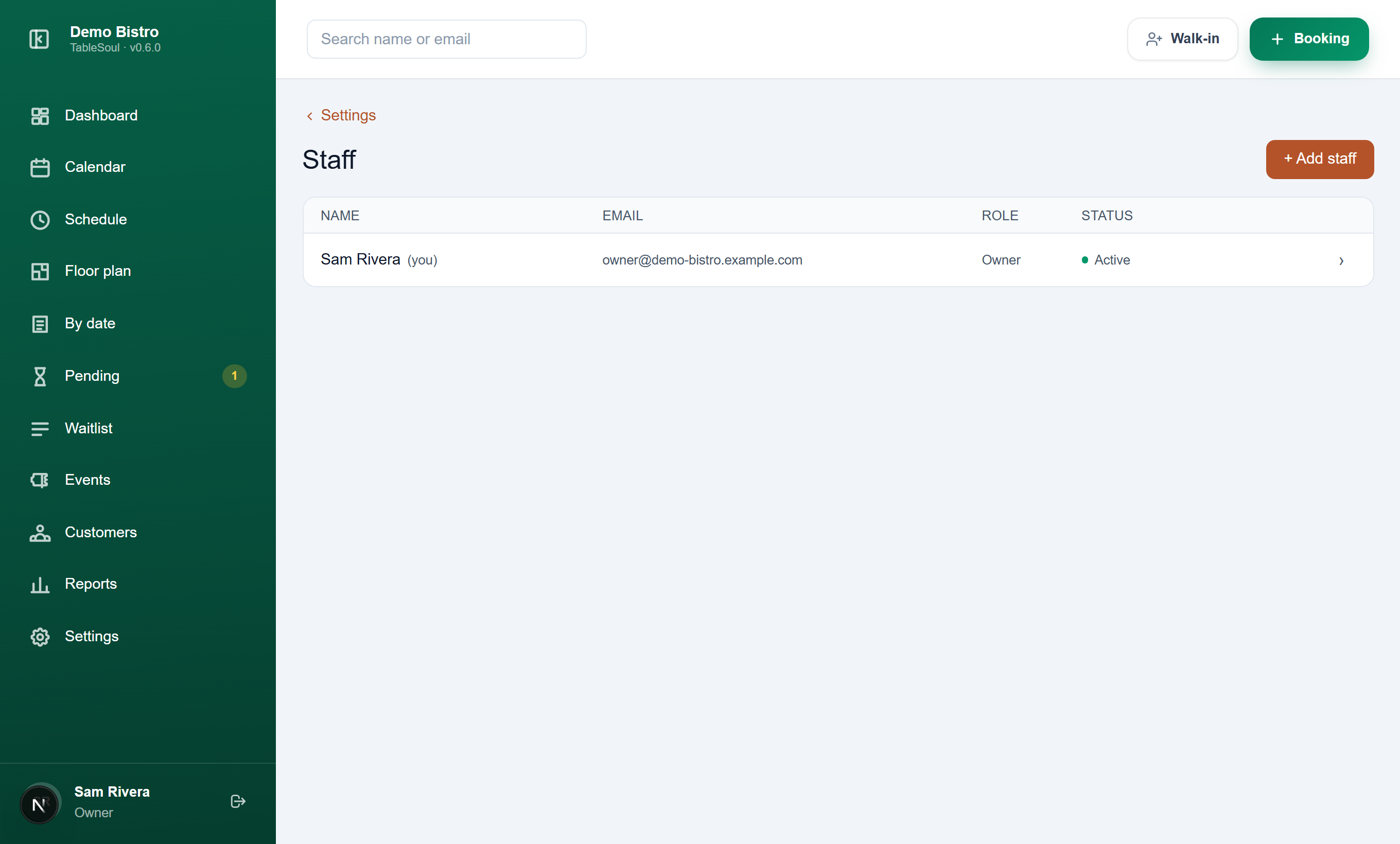 The Staff page
What each role can do
| Role | Can do |
|---|---|
| Staff | Day-to-day bookings and the floor: take bookings, walk-ins, approve and decline, change status, add attendees to events and record payments. |
| Manager | Everything staff can, plus tables, services, events management, refunds and settings. |
| Owner | Everything, including billing, staff and connecting Stripe. |
Settings and Reports appear in the menu for managers and owners. Billing and Staff are owner-only.
Invite someone
- Press + Add staff.
- Enter their Name, Email and Role.
- Press Send invite.
They get an email and set their own password. You never type or see it.
You'll be told if the email already belongs to staff, if they've already been invited, or if your plan's staff limit is reached (pending invites count towards it).
Invite expiry
Invite links last 7 days by default. Change it in Settings > Staff invites (1 to 30 days). If a link expires, open the person and press Resend invite.
Edit someone
Open a person to change their name, email or role. Changing the email on a pending invite resends it. You can't demote yourself while you're signed in as an owner. Ask another owner to do it.
Passwords
Press Send reset email, which is the safer choice, or Set a password (minimum 8 characters) if you must.
When someone leaves
- Deactivate takes away their access but keeps their record and history. Add an optional reason. Reactivate restores it with the same role (if your plan's staff limit allows).
- Delete removes their record permanently and can't be undone.
You can't deactivate or delete your own account.
Use the search box ("Search name or email") to find people in a long list.
Did this answer your question?