Contact TableSoul support
How to reach the TableSoul team, what to include so we can help fast, and what to try first.
Updated 20 October 2026
If you can't find the answer in these guides, message the TableSoul team without leaving the app, or email us at getintouch@tablesoul.com.
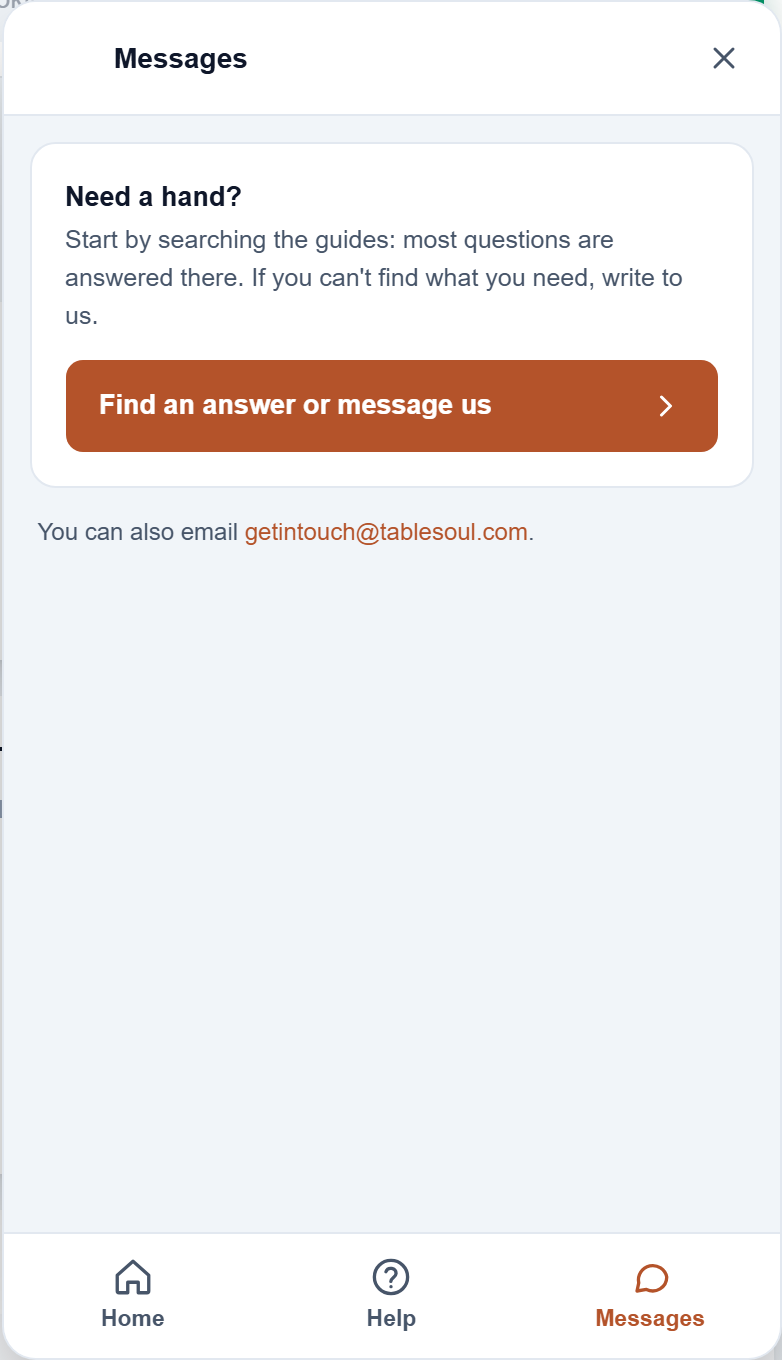 The Messages tab in the help panel
Message us in the app
- Press the round help button at the bottom right of any page.
- Choose the Messages tab, then Find an answer or message us.
- Type a few words about what you need. TableSoul shows the guides that match, because most questions are answered there and you get the answer straight away.
- If none of them help, press None of these helped, write to us. (You can also press Still stuck? Write to us at the bottom of any guide you've read.)
- Write what's happening. Tick This is urgent if you can't take bookings or payments right now.
- Press Send message.
We automatically see your venue, your name and the page you were on, so you don't need to repeat them.
Add a screenshot
A picture often saves a lot of explaining. You can:
- Paste a screenshot straight into the message box (Ctrl + V, or Cmd + V on a Mac), or
- Press Attach a screenshot and choose a PNG, JPG or WebP file.
You can attach up to 4 images to a message. Large screenshots are shrunk automatically. Before you take a screenshot, make sure it doesn't show guest names, phone numbers or card details you don't need to share.
Replies
The team's answer appears in the same Messages tab. It shows up on its own while you have the conversation open, so you don't need to close and reopen it. We also email it to you. A red number on the help button tells you when there's a reply you haven't read. You can answer back, with screenshots too, in the same conversation. Only you can see your own conversations.
Each person can send up to 10 messages an hour.
Try these first
Many problems have a quick fix:
- Search the Help Centre (the box at the top of every page) or use the round help button in the app.
- Something not working? Try Browser tips for refreshing, clearing the cache and fixing odd behaviour.
- A guest can't see a time? Why a guest can't see a time.
- A guest didn't get an email? A guest didn't get an email or text.
- A menu item is missing? A menu item or setting is missing.
- A card payment looks stuck? A guest paid but their booking still says "checking".
What to include in your message or email
The more we know, the faster we can fix it:
- Your venue's name and your own name and role.
- What you were trying to do, and what happened instead. Copy any message you saw word for word.
- Which page you were on, and roughly what time it happened.
- A screenshot, if you can.
- For a booking problem, the guest's name and the booking's date and time.
- For a payment problem, the event name and roughly when the guest paid.
Put URGENT in the subject if you can't take bookings or payments right now.
Please don't send
- Passwords, reset links, or invite links.
- Stripe keys or card details.
- More guest personal details than we need to find the booking.
Other things to contact us about
- Your plan, billing or limits: Your plan and billing, Plan limits and what happens when you reach them.
- Deleting or correcting a guest's data: there isn't a delete-guest button in TableSoul yet, so ask us. See Guest privacy, consent and marketing opt-in.
- Changing your venue's name, or removing a saved email or text provider key.
- Ideas and feedback. Tell us what would make TableSoul better for your venue.
- Staff cancel or waitlist behaviour you'd like different: let us know how you'd like it to work.
Feedback on these guides
At the bottom of every article there's a row of three faces under Did this answer your question? One tap tells us how we did. If it wasn't helpful, you can tell us what you were looking for.
Did this answer your question?