Quick start guide
A five-minute tour of the TableSoul staff app and the first things to check.
Updated 18 October 2026
Welcome to TableSoul. This page walks you through the staff app so you know where everything lives on your first shift.
The menu on the left
| Menu item | What it is for |
|---|---|
| Dashboard | Today at a glance: who is booked, who has arrived, and what needs attention. |
| Calendar and Schedule | Look at bookings by day or by time slot. |
| Floor plan | See which tables are taken right now and seat guests. |
| By date | Find every booking on a particular day. |
| Pending | Bookings waiting for you to approve (for services that need approval). |
| Waitlist | Guests waiting for a table to free up. Shown only if your plan includes it. |
| Events | Ticketed events and their attendees. Shown only if your plan includes it. |
| Customers | Your guest list, with their notes and dietary tags. |
| Settings | Opening hours, services, tables, emails and more. Managers and owners only. |
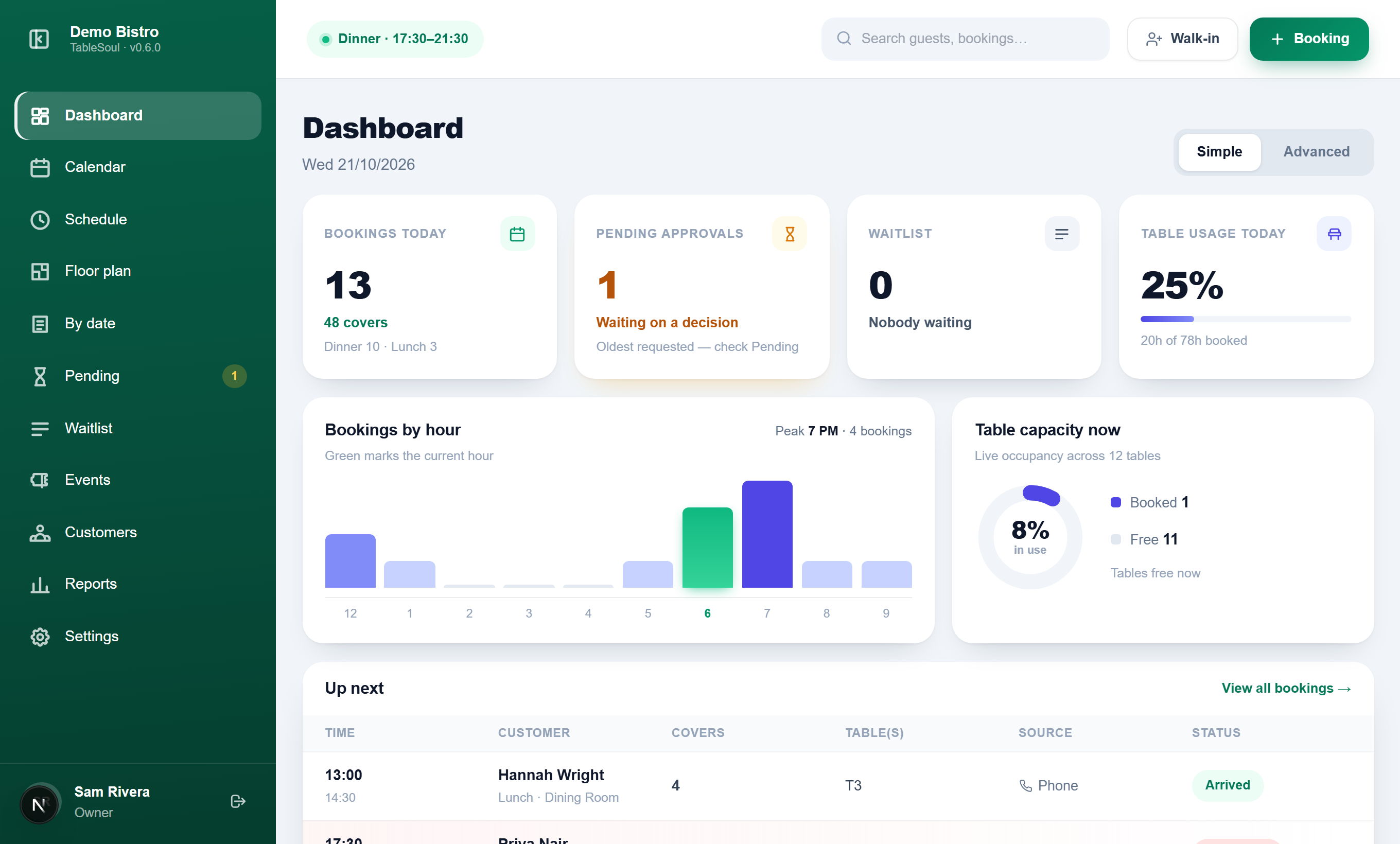 The dashboard on a busy evening
Your first five minutes
- Open the Dashboard and look at today's bookings.
- Press + Booking to add a phone booking. See Take a phone booking.
- When a guest turns up, open their booking and change the status to Arrived.
- If someone walks in without a booking, use + Walk-in.
Tip: You cannot break anything by looking around. Bookings are only changed when you press a save or confirm button.
Need more help?
Press the round help button at the bottom right of any page to search these guides. It suggests articles for the page you are on. For the full tour, see Find your way around the staff app.
Did this answer your question?