Create and publish an event
Set up a ticketed or free event, decide what happens to normal dining, and open it for bookings.
Updated 18 October 2026Managers and owners onlyDepends on your plan
Events are one-off occasions with a set number of places: a Christmas lunch, trivia night, or a set-menu evening. Guests book places online, and you manage who is coming from the event page.
Managers and owners can create and edit events. Any staff member can add attendees and record payments.
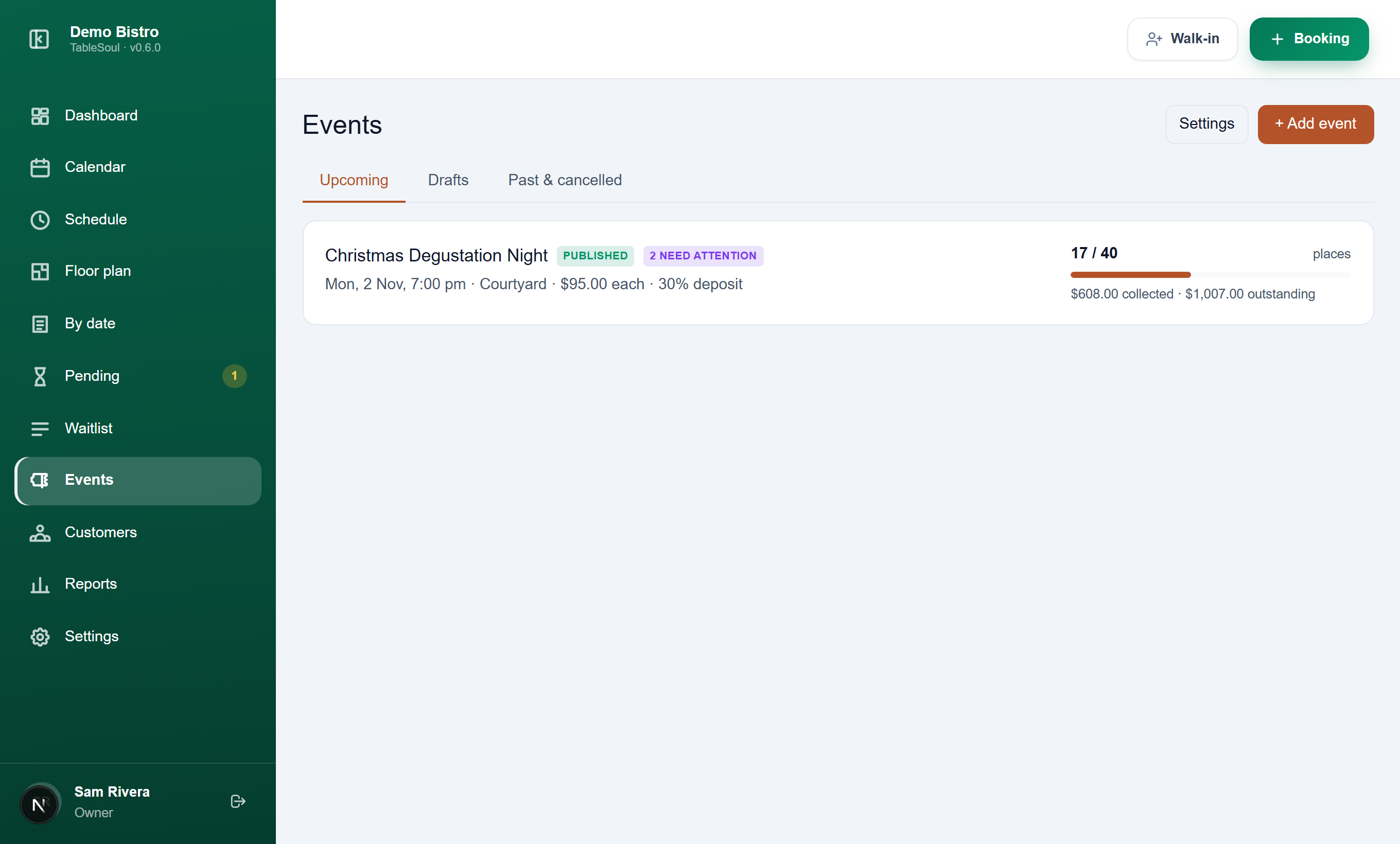 The events list
Add an event
- Open Events in the menu and press + Add event.
- Fill in the three columns (described below).
- Press Save draft to keep working on it, or Publish event to open it for bookings.
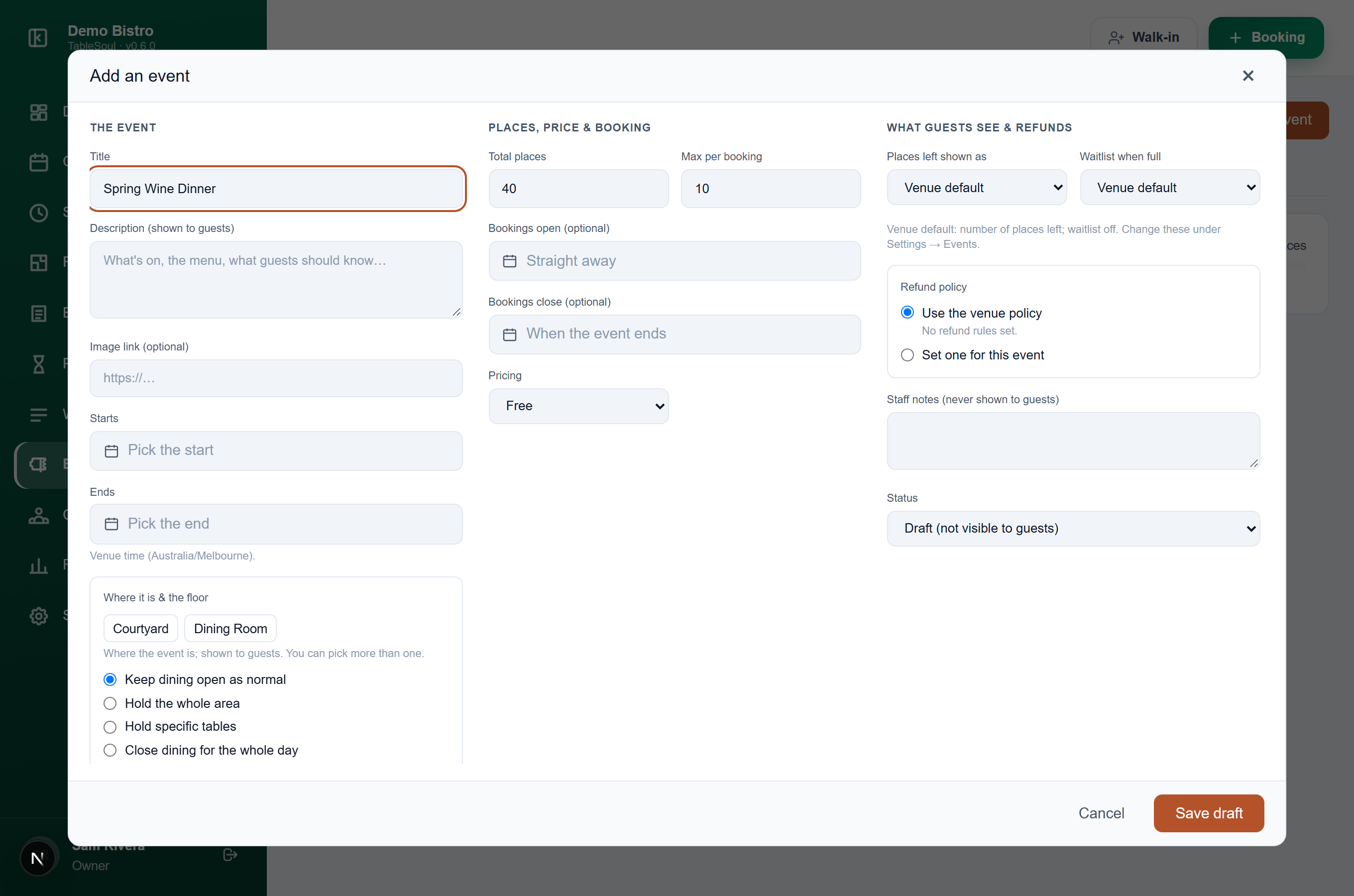 The Add an event window
Tip: New events start as a Draft. Guests can't see a draft, and any table hold or closure only starts once the event is published.
The event
- Title (required) and Description, which guests see.
- Image link (optional). It must start with
https://. - Starts and Ends. Times are in your venue's time zone. If you set a start and leave the end empty, the end fills in as three hours later.
Where it is and what happens to normal dining
Tick the areas the event is in. Guests see the location. Then choose how normal dining is affected:
| Option | What it does |
|---|---|
| Keep dining open as normal | The event runs alongside normal bookings. |
| Hold the whole area | Normal bookings can't take tables in the ticked areas during the event. Needs at least one area. If you tick two or more areas, guests choose their area when they book. |
| Hold specific tables | Same, but only for the tables you pick. |
| Close dining for the whole day | Closes the venue (or just the services you tick) for that day. |
Holds and closures never cancel existing table bookings. If some already exist on that day you'll see a notice telling you how many, and you can deal with them yourself.
Places, price and booking
- Total places (default 40) and Max per booking (default 10).
- Bookings open and Bookings close (both optional). Leave them empty to open straight away and close when the event ends.
- Pricing: Free, Per person (price each) or Per booking (one price however many places).
- Ask for a deposit: tick it and set a percentage (default 30). The form shows an example, such as "2 places: $190 total, $57 deposit". Deposits only apply to paid events.
To take the deposit by card, see Take card payments with Stripe.
What guests see and refunds
- Places left shown as: the venue default, the number, a status only (Available / Nearly full), or nothing.
- Waitlist when full: the venue default, on or off.
- Refund policy: use the venue's policy or set one for this event. See Cancellation policy and automatic refunds.
- Staff notes are never shown to guests.
Set menu
For a set-menu event, open the Menu tab on the event to add courses and dishes that guests choose from: Let guests choose dishes from a set menu.
Changing a published event
- You can raise or lower Total places, but not below the number already booked or held.
- A cancelled event can't be edited.
- Saving extra places, or turning the waitlist on, makes the waitlist offer places to the people waiting.
Cancelling an event
Press Cancel event on the event page. You can add a message for your guests.
- Every booking is cancelled and each guest is emailed.
- The waitlist is cleared and any table holds or closures are removed.
- No money moves automatically. Everyone who paid is owed a full refund. Tick Show cancelled, then use Refund on each booking. See Refund an event booking.
Did this answer your question?