Set your opening hours and special dates
Enter your weekly opening hours, split shifts, and close or change hours for holidays and special days.
Updated 18 October 2026Managers and owners only
Open Settings > Opening hours. There are two parts: your regular weekly hours and special dates.
Weekly opening hours
These are when the venue itself is open. Services (Lunch, Dinner) are checked against them.
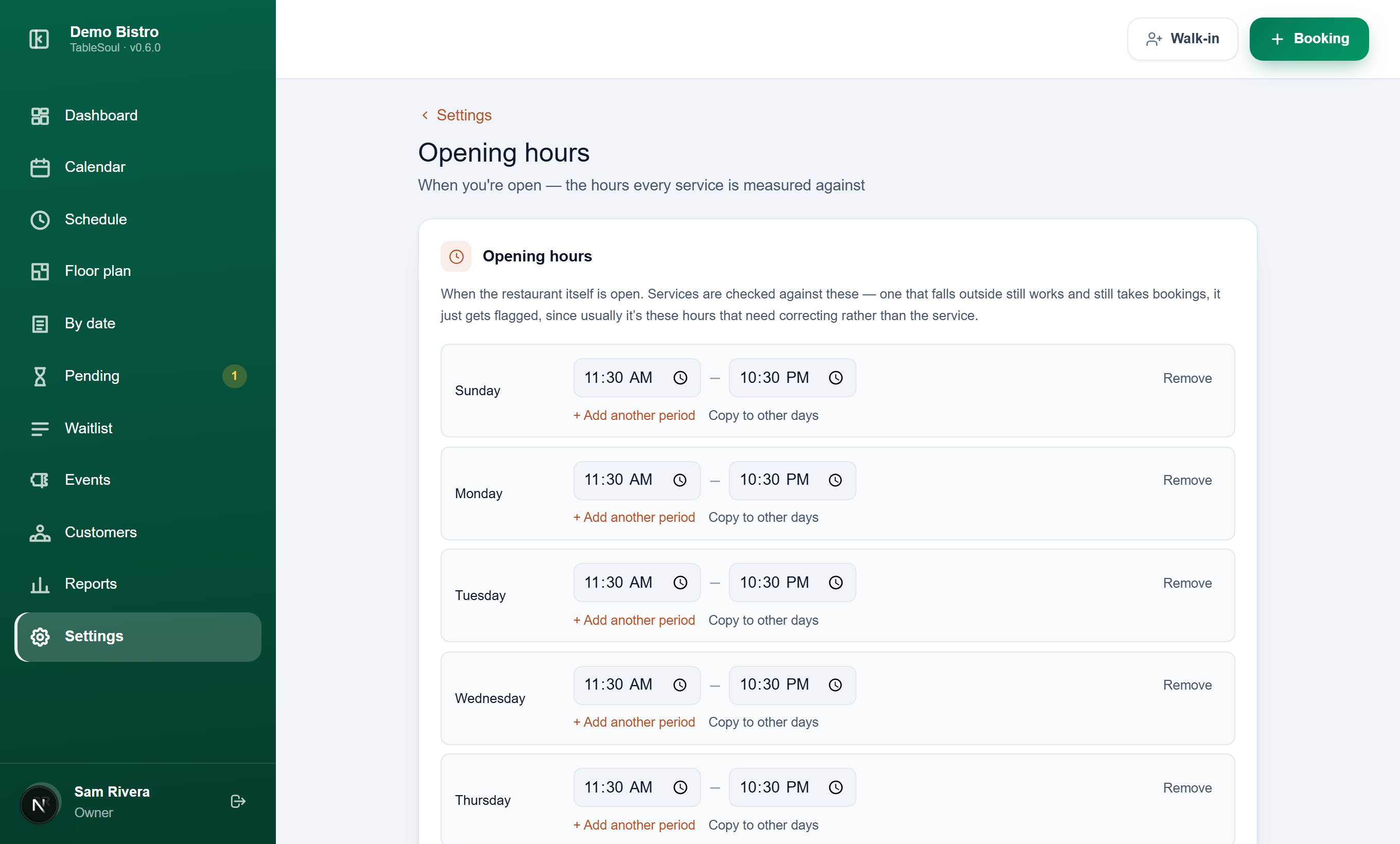 The Opening hours settings
- For each day, press Set hours and choose the opens and closes times.
- For a split shift (say lunch and dinner), press + Add another period.
- A closing time earlier than the opening time means the venue stays open past midnight, shown as "until next morning".
- Use Copy to other days to apply a day's hours to the rest, such as Weekdays or Weekend. It replaces anything already set on those days.
- Press Save in the bar at the bottom.
Good to know: weekly hours flag services that fall outside them, but they don't stop bookings. A day with no hours set doesn't block bookings either. To actually stop bookings, use a special date.
Special dates
Special dates are for holidays, closures and seasonal hours. They do stop bookings.
- Press + Add a special date.
- Give it a name, for example Christmas Day.
- Choose When: One day or A range.
- Choose what happens: Closed, or Open, different hours with a time range.
- Choose Applies to: The whole restaurant, or one service only (for example, close just Lunch).
- Press Add it.
The rules, in order: your weekly hours are the default, special hours for a date replace them, and Closed beats both. Click a special date in the list to edit it, or press Remove.
Tip: To close dining for an event day, use the options in the event itself. See Create and publish an event.
Did this answer your question?