The Calendar and Schedule in detail
How to read the month Calendar's colours and use the Schedule timeline's controls.
Updated 20 October 2026
The Calendar
A month grid starting on Monday. Each day shows how full it is, with the number of bookings and covers.
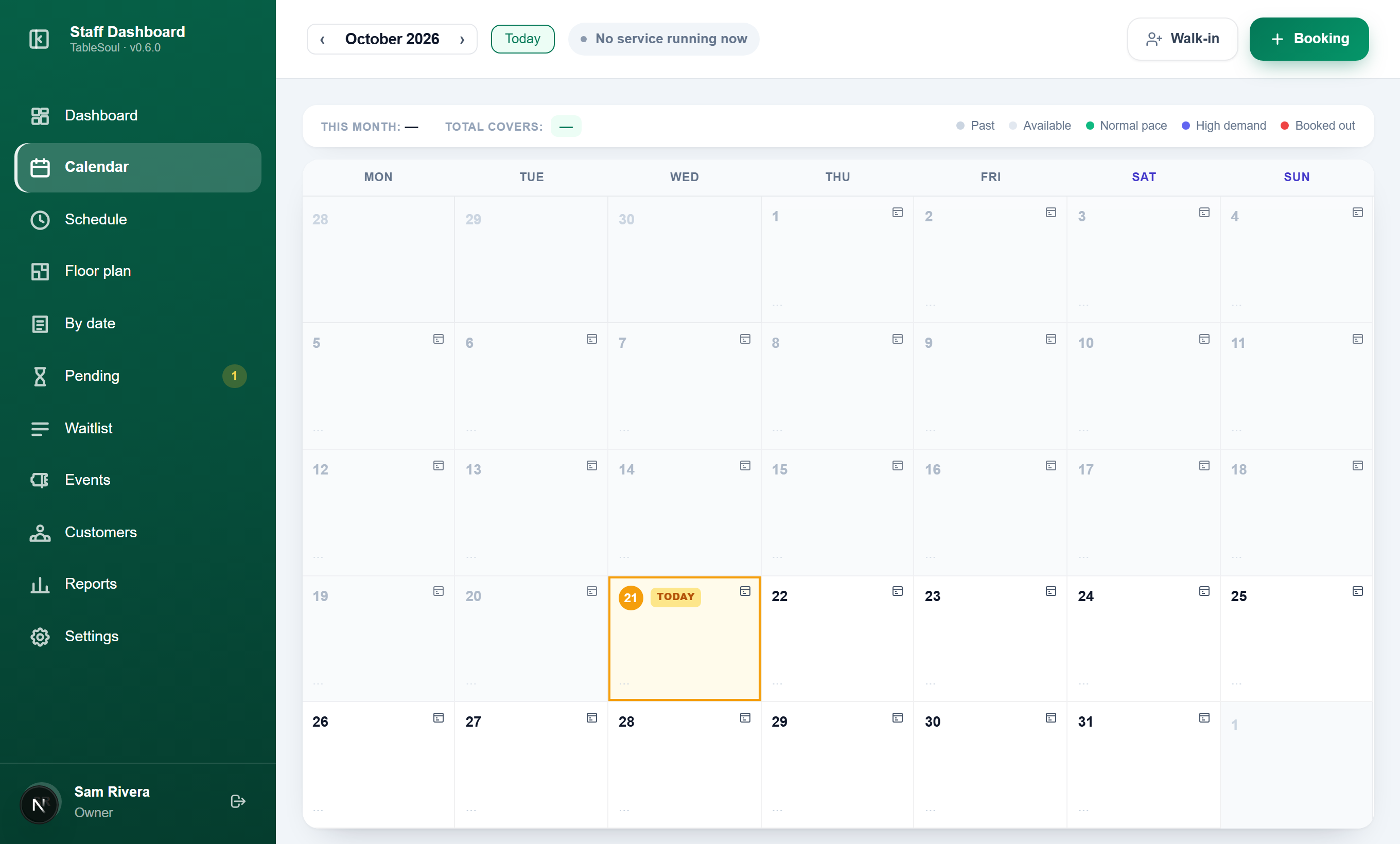 The month Calendar
- Colours: past days are greyed. Normal pace is under 55% used. High demand is 55% or more. Booked out is 90% or more and gets a red BOOKED OUT badge.
- Closed days show "Closed". They come from your weekly service hours. Special dates and event closures aren't marked here, so check By date if you've set one.
- Click a day to open it in By date. The small button in a day's corner opens it in Schedule.
- The bar above shows the month's bookings, total covers and the peak day.
- Today is marked, and the Today button jumps back.
The Schedule
A one-day timeline with a row for each table and a 15-minute grid.
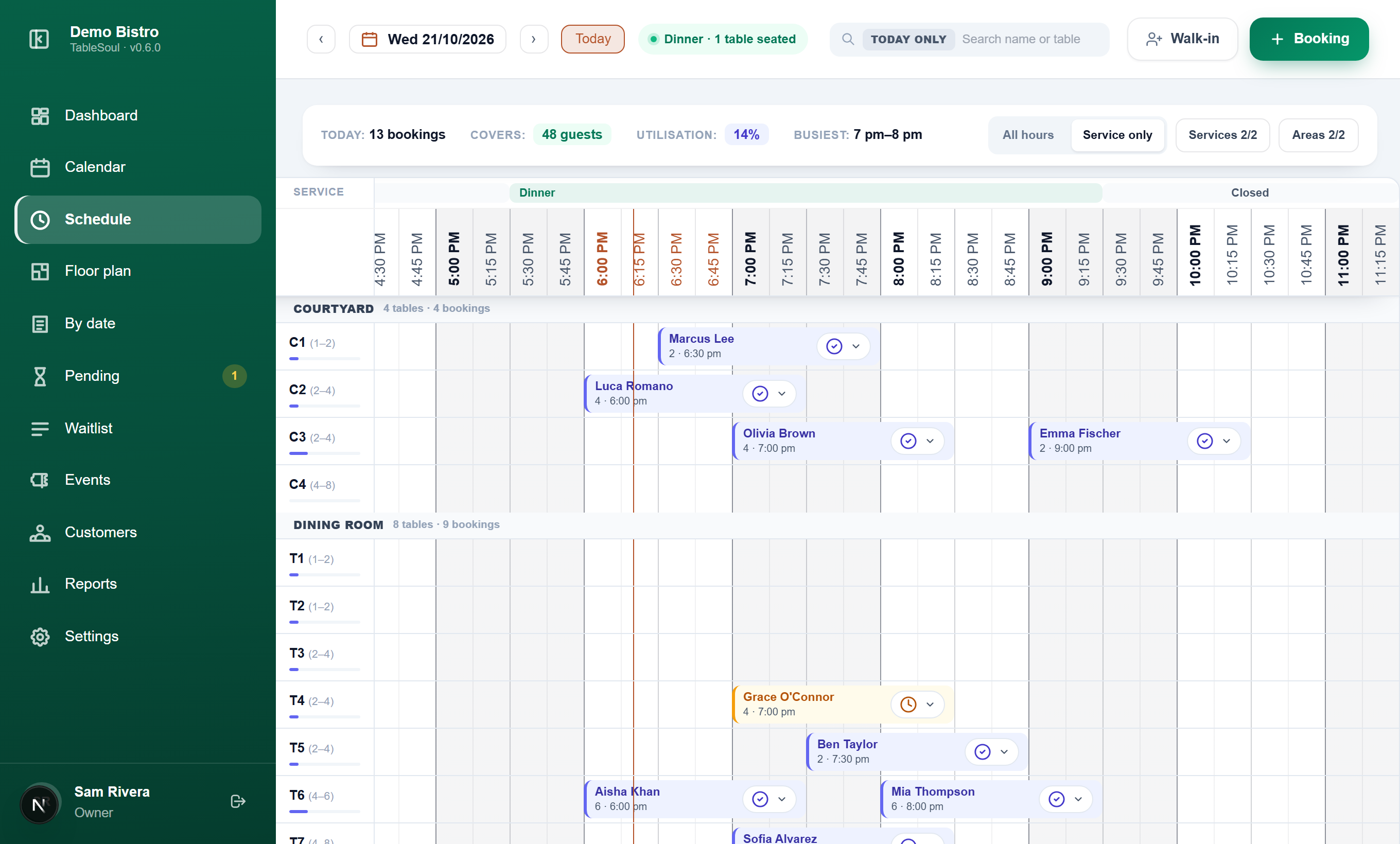 The Schedule
- Booking blocks are coloured by status and show the guest, party size and time. Click one to open it for editing.
- Click an empty spot in a table's row to start a New booking for that table and time, snapped to 15 minutes.
- All hours shows the whole day. Service only zooms to the running service.
- Services and Areas choose what's shown. Anything unticked is hidden.
- Closed bands show when a service isn't running.
- The search box (name or table) dims blocks that don't match instead of hiding them.
- The date arrows and Today move between days.
On a busy day, use the Floor plan for who's seated and the Schedule for what's coming. Event table holds aren't drawn on the Schedule: see Hold tables and close dining for an event.
Related
Did this answer your question?