Find bookings in the Dashboard, Calendar, Schedule and By date
Which page to use to see today at a glance, a month ahead, a timeline by table, or every booking on a day.
Updated 24 October 2026
TableSoul shows bookings in four ways. Pick the one that answers your question.
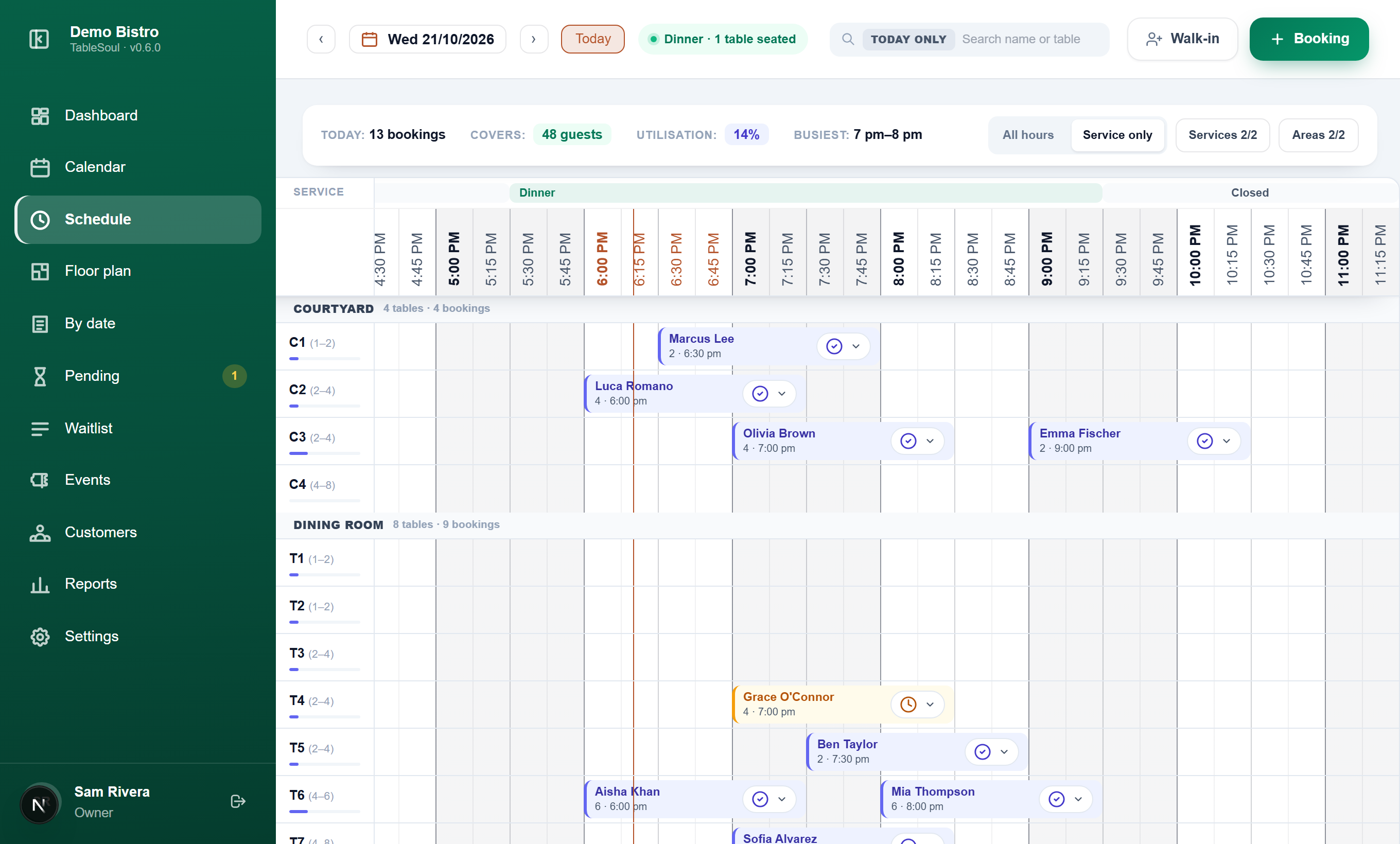 The Schedule timeline
| Page | Best for |
|---|---|
| Dashboard | "How is today looking?" |
| Calendar | "Which days are busy this month?" |
| Schedule | "Who is on which table, and when?" |
| By date | "Show me every booking on a day, with filters." |
Dashboard
The Dashboard is today at a glance.
- Tiles: Bookings today (and covers), Pending approvals, Waitlist (if your plan has it), and Table usage today.
- Bookings by hour highlights the current hour in green, and Table capacity now shows how many tables are free.
- Up next lists the next bookings with their table and status. A red "12m late" appears when a confirmed guest is past their time. View all bookings goes to By date.
Managers and owners can switch between Simple and Advanced. Advanced adds a "Needs attention" banner, today by service, a comparison with the same day last week, a "today at a glance" summary, and the next 7 days.
The search box at the top matches today's bookings and your customers, by name, phone or email. Type two or more letters. Each result shows a round avatar with the guest's initials, their phone and email, and (for today's bookings) the time, party size, table and a status chip. Click a booking to open that exact booking on By date. Click a guest to open their profile on the Customers page.
Calendar
A month grid. Each day shows how full it is, with the number of bookings and covers.
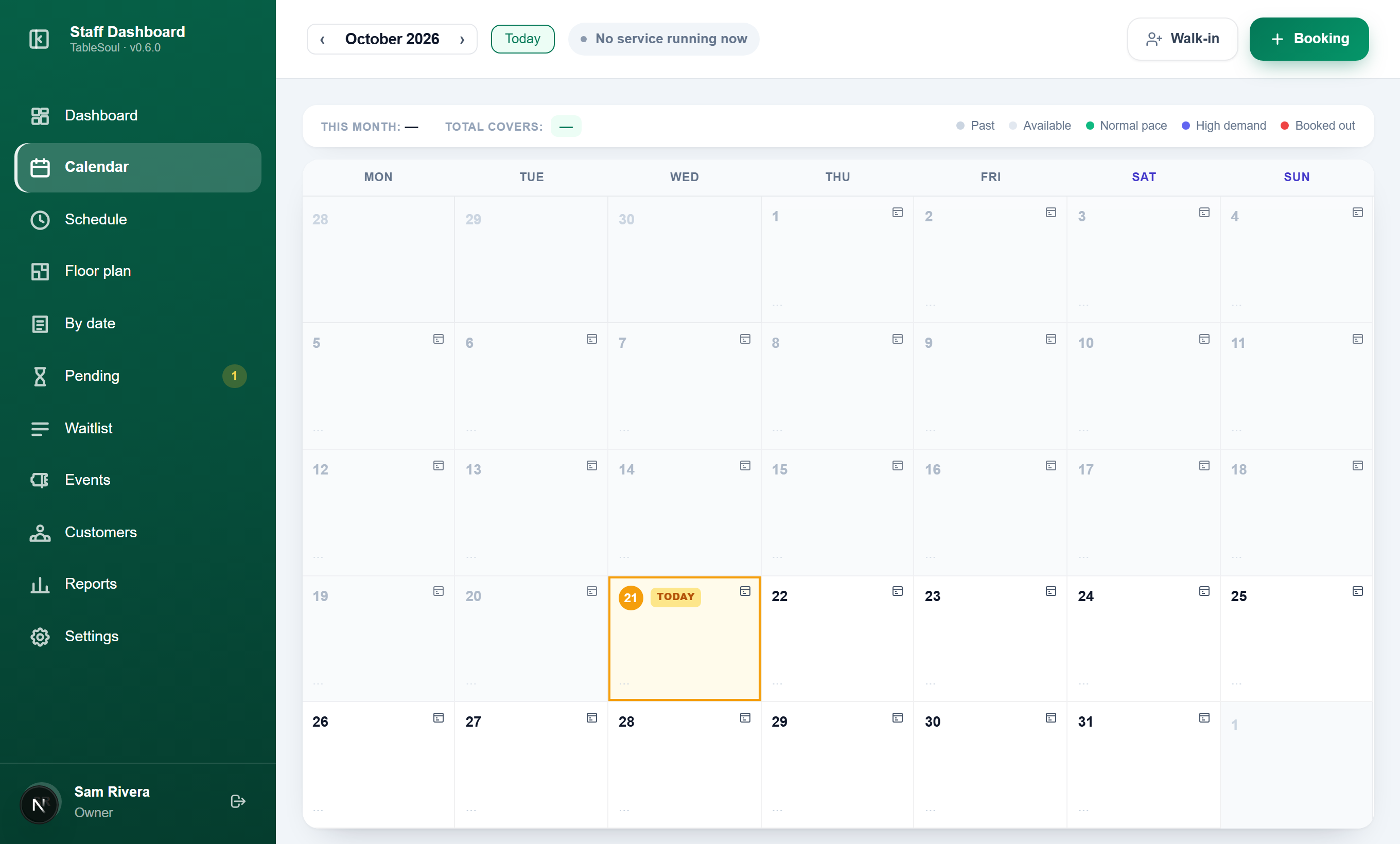 The month Calendar
- High demand is 55% used or more. Booked out is 90% or more and gets a red badge.
- Click a day to open it in By date. The small button in the corner opens that day in Schedule.
- The bar above shows the month's bookings, total covers and busiest day.
Schedule
A timeline for one day with a row for each table.
- Bookings are blocks coloured by status. Click one to open it for editing.
- Click an empty spot on a table's row to start a new booking for that table and time (snapped to 15 minutes).
- All hours and Service only switch the time range. Services and Areas choose what is shown.
- The search box dims bookings that don't match instead of hiding them.
By date
Every booking on a chosen day in a table, with a summary of bookings, covers and how many need action.
- Filter by Status, Service, Area and Source, or tick Upcoming only.
- Search by name, phone or email.
- Click a row to open the full booking card.
- On the right: Covers by service and the Shift notes for the day.
Searching
There isn't one search box for the whole app. Each page has its own in the top bar and searches what that page shows.
Did this answer your question?