Change, cancel or mark a booking
Edit a booking, change its status (arrived, completed, no-show, cancelled), and what the guest is told.
Updated 24 October 2026
Change the status
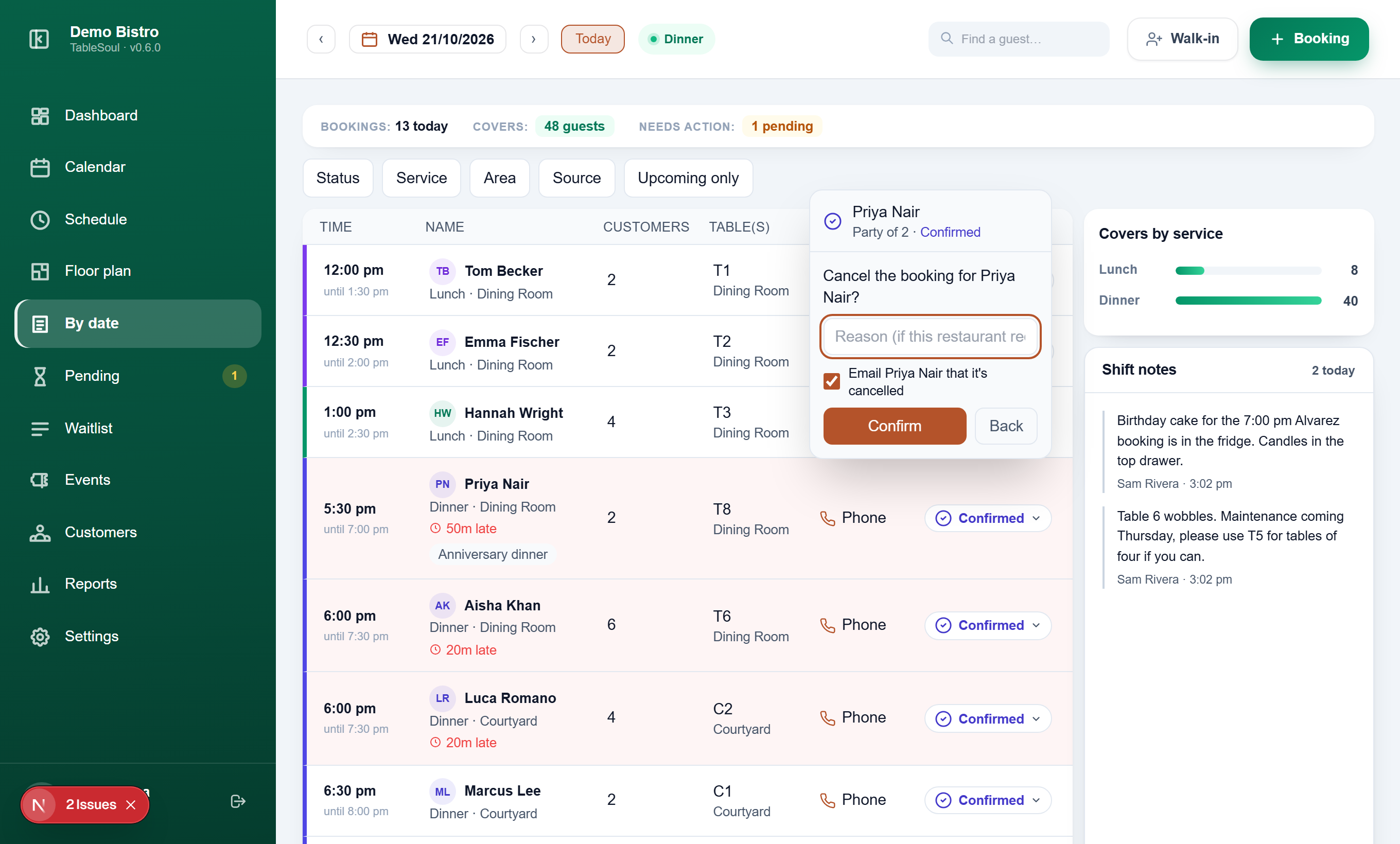 Cancelling a booking, with the option to email the guest
On a booking card, the status chip (for example Confirmed ▾) opens a menu. You'll find it on the Schedule, By date, the booking cards and a customer's history.
| Status | Use it when |
|---|---|
| Confirmed | The booking is on the books. |
| Arrived (shown as Seated in the booking form) | The guest is at the table. The time they arrived is recorded. |
| Completed | They've finished. The card then shows how long they were seated. |
| No-show | They didn't turn up. |
| Cancelled | The booking won't go ahead. |
You can also move backwards, for example from Completed to Arrived, or from Cancelled back to Confirmed if you cancelled by mistake. TableSoul checks the table is still free first, and if not asks you to edit the booking to a different table.
Pending and declined bookings use Approve and Decline instead. See Approve or decline pending bookings.
Cancelling and no-shows
Choosing Cancelled or No-show asks you to confirm and has a Reason box. The reason is optional unless a manager has turned on Require a reason when staff cancel a booking or mark a no-show in Settings > Changes & cancellations. The reason shows on the card, for example "Cancelled: guest unwell".
Telling the guest: when you choose Cancelled, a tick box reads Email [name] that it's cancelled. It is ticked by default when the guest has an email address, and the guest gets an email called "Your booking was cancelled". Untick it to cancel quietly. No-show, Arrived and Completed never send the guest anything. If a guest should know about a change, contact them or use Edit with the email box ticked.
Edit a booking
Click Edit on the card (or click the booking on the Schedule). The Edit window looks the same as + Booking: Reservation, Table & duration and Guest side by side. You can change the date, service, duration, area, party size, time, table, name, phone, email, source, tags, message to guest and private note.
- The table list shows only sensible tables. If your change makes the table unavailable you'll see "That table isn't free at the new time."
- A party size outside the service's limits is refused.
- Moving the time remembers the original time.
- Email [name] about this change is ticked by default. Untick it for quiet corrections. If the guest has no email address you'll be warned that nothing will actually send.
Changing guest details
The name, phone and email belong to the guest's profile, so changing them here changes them on all their bookings. A gold notice says so as soon as you change one: "You're changing Kay's details. This updates their customer profile and every booking they have, not just this one."
A guest must always keep at least one of phone or email.
Tags on a booking
On the card, Add a tag or Edit tags opens a checklist of Special occasion, Dietary requirement and Other tags. Dietary and Other tags are also saved to the guest's profile ("Known for"). Occasion tags stay with this booking only.
Did this answer your question?