Use the floor plan
See which tables are taken right now or at any time, and seat guests by clicking a table.
Updated 18 October 2026
The Floor plan is a live picture of your room. It is built from real bookings, nothing is forecast.
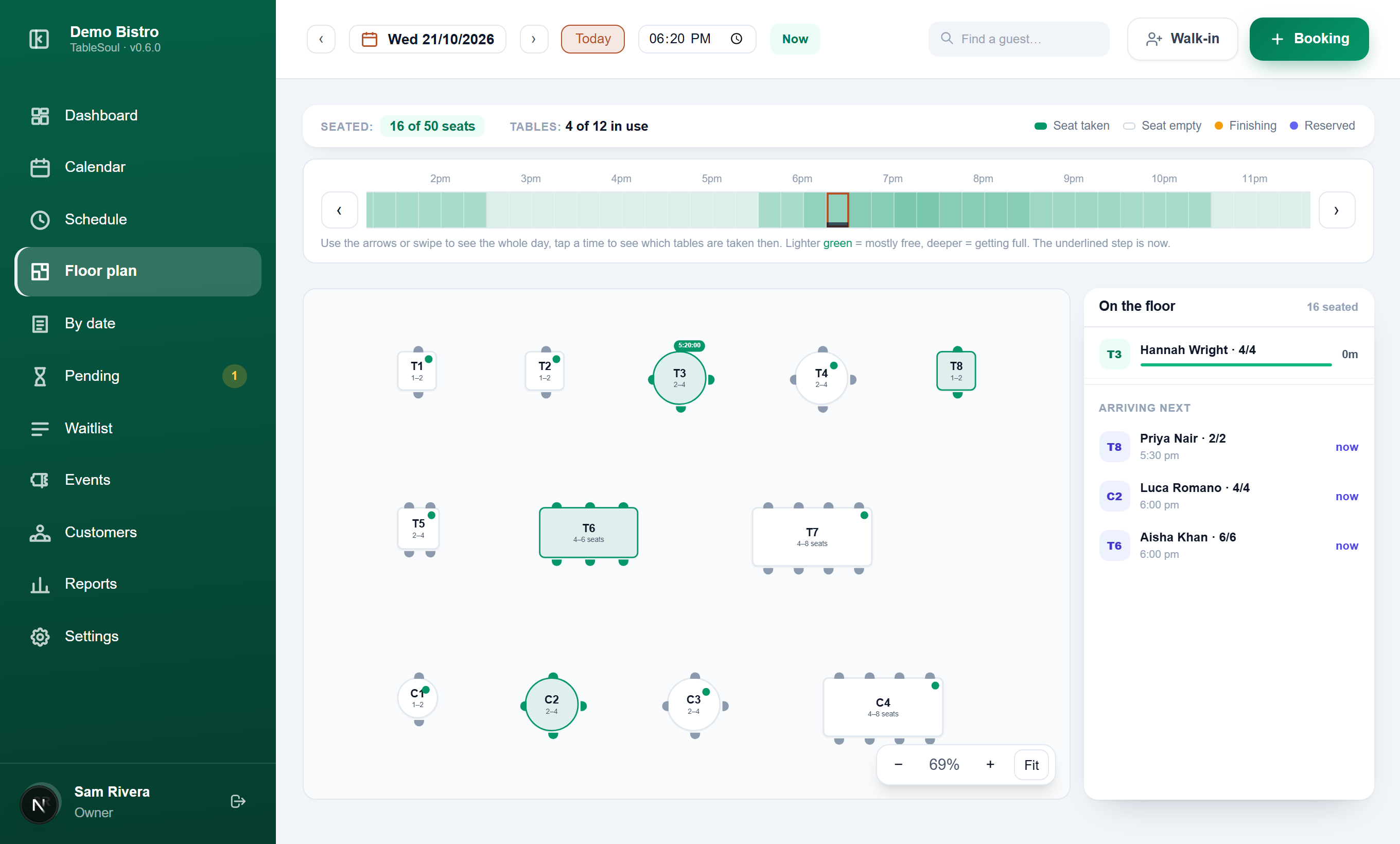 The floor plan
Read the room
- A table is taken when a confirmed or arrived booking covers the moment you're viewing. Seats fill to match the party size. Guests who are still seated keep their table even if they run over.
- Finishing (amber) means a booking ends within 15 minutes. Reserved (indigo) means a booking is due soon.
- A table that is part of a combined table is marked taken together with its partners.
- The bar shows Seated (seats used), Tables in use and how many are Finishing.
Look at another time
- Use the time box, the ‹ › date arrows, Today, or Now to jump back to the live view.
- The timeline strip along the top shows every 15 minutes. Hover for "3 of 12 tables taken" and click to jump there.
- The side panel lists who is on the floor now and who is arriving next. If your waitlist has people waiting, it links to it.
- The search box highlights a guest's table.
Seat or book from the plan
- Click a free table while viewing Now to open the Walk-in form with that table chosen.
- Click a free table at another time to open a New booking for that time.
- If neighbouring tables in the same area are also free, the form offers them as chips so you can seat a larger group. Tap a chip to leave a table out. The combination is only created when you save.
- Click a taken table to open that booking and change its status.
If a table is set to online-only or off, you'll be told staff can't book it and to change its rule under Tables.
Setting up the plan
Managers draw and arrange the plans in Tables > Floor plans. See Set up areas, tables and floor plans. If there isn't a plan yet you'll see "No floor plan has been set up yet."
The page refreshes itself every minute.
Did this answer your question?