How guests book a table online
Walk through your booking page the way a guest sees it, so you can help someone who's stuck.
Updated 20 October 2026
Your booking page (/your-venue/book) takes guests through three phases: Date & Guests, Details and Confirm. Share it from Share your booking link, QR code and website widget.
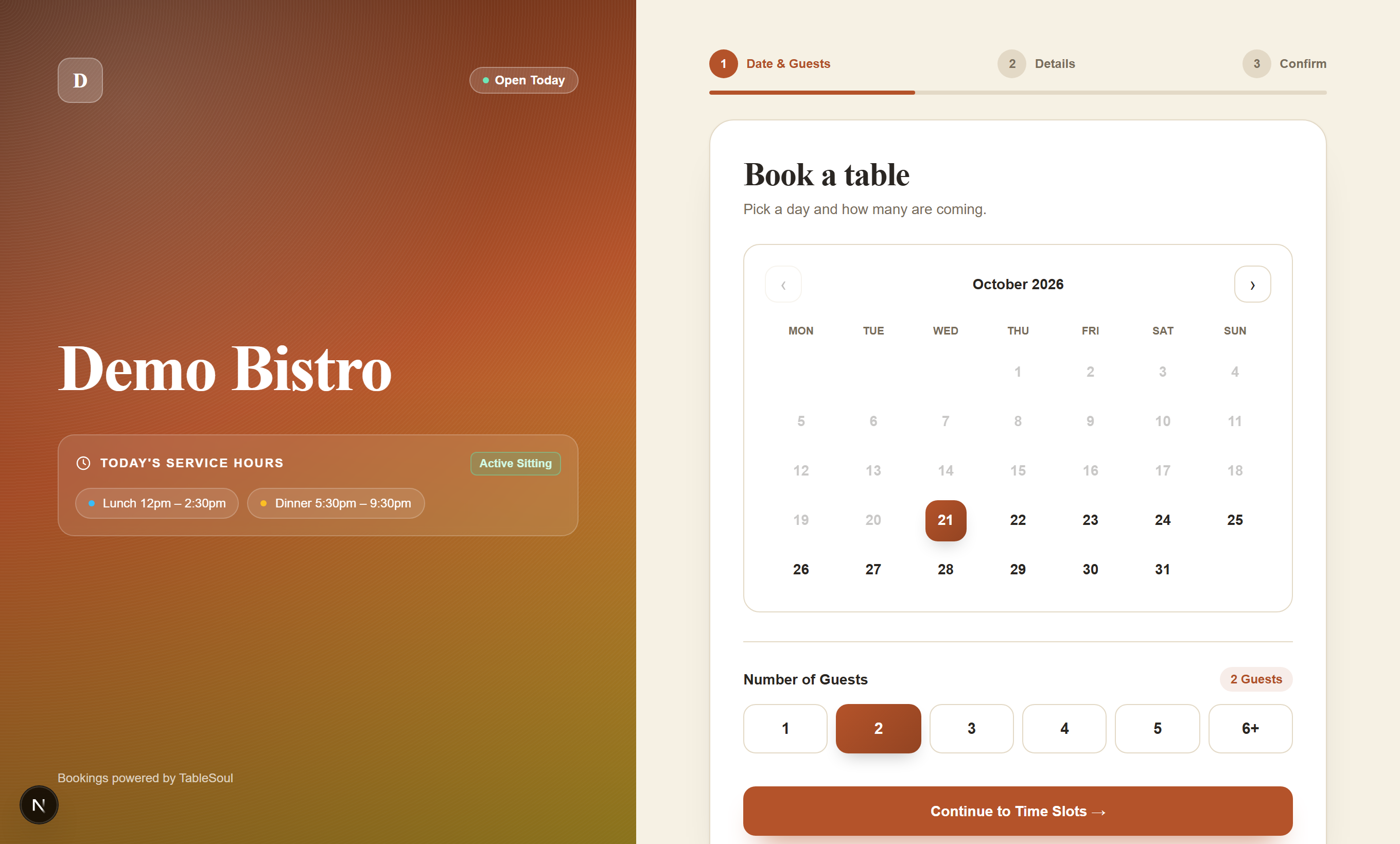 The first step of your booking page
1. Pick a day and how many
- A month calendar. Days beyond your advance-booking limit can't be chosen, and the page says "Online bookings open up to N days ahead."
- Party size buttons run from 1 to 5, then 6+ which opens a stepper.
- If you have events, a banner links to "See what's on".
- Continue to Time Slots is greyed out when nothing is bookable for that party size (see below).
2. Pick a time
- If you have more than one area, guests can choose where they'd like to sit (All areas or a specific one). It's optional.
- Times appear as a grid. Guests never choose a service: all your services are merged into one list of times.
- Changing the date, party size or area clears the time.
3. Details
- Name is required. A phone or an email is always required, and you can make each one, or a note, individually required in Booking rules, required details and spam protection.
- Small expandable rows ask Is this a special occasion?, Do you have any dietary requirements?, Do you have any special requirements? and Anything else we should know?. A row is hidden if you haven't set up tags of that kind.
- Dietary and special-requirement choices are saved to the guest's profile so you remember them next time.
4. Review and confirm
The guest sees a summary they can tap to correct. There is a line saying their details are shared with your venue to manage the booking, with a link to the privacy policy, and an unticked box for offers and updates.
What the guest sees afterwards
- Auto-approved: "You're booked in!" with the details. They're told a confirmation is on its way, and if you've chosen to show your phone number after booking, "Need to change something? Call...". A View or change your booking button opens their booking page.
- Needs approval: "Request received. Your request has been received and is awaiting confirmation." There's no change link yet. You approve it from Pending: Approve or decline pending bookings.
- Couldn't book: the reason, plus your phone and email so they can call, and Try again. If you have a waitlist, a Join the waitlist button appears.
Party-size limits
A guest sees a notice instead of continuing when no service can take their party:
- Too large: "Online bookings are for parties of up to 8. For 12 guests, call [your phone] and we'll sort it out."
- Too small: "Online bookings start at 2 guests."
- No date available: "Nothing is bookable online for that date and party size."
The online waitlist
If no times are free and your plan includes the waitlist, the guest can Join the waitlist for this date. They give their details, and the summary says it isn't a confirmed booking. See Use the table waitlist.
If a guest can't find a time you expected, see Why a guest can't see a time.
Did this answer your question?