Share your booking link, QR code and website widget
Find your guest links, download a QR code for posters, and put the booking form or your events on your own website.
Updated 18 October 2026Managers and owners only
Open Settings > Link & widget.
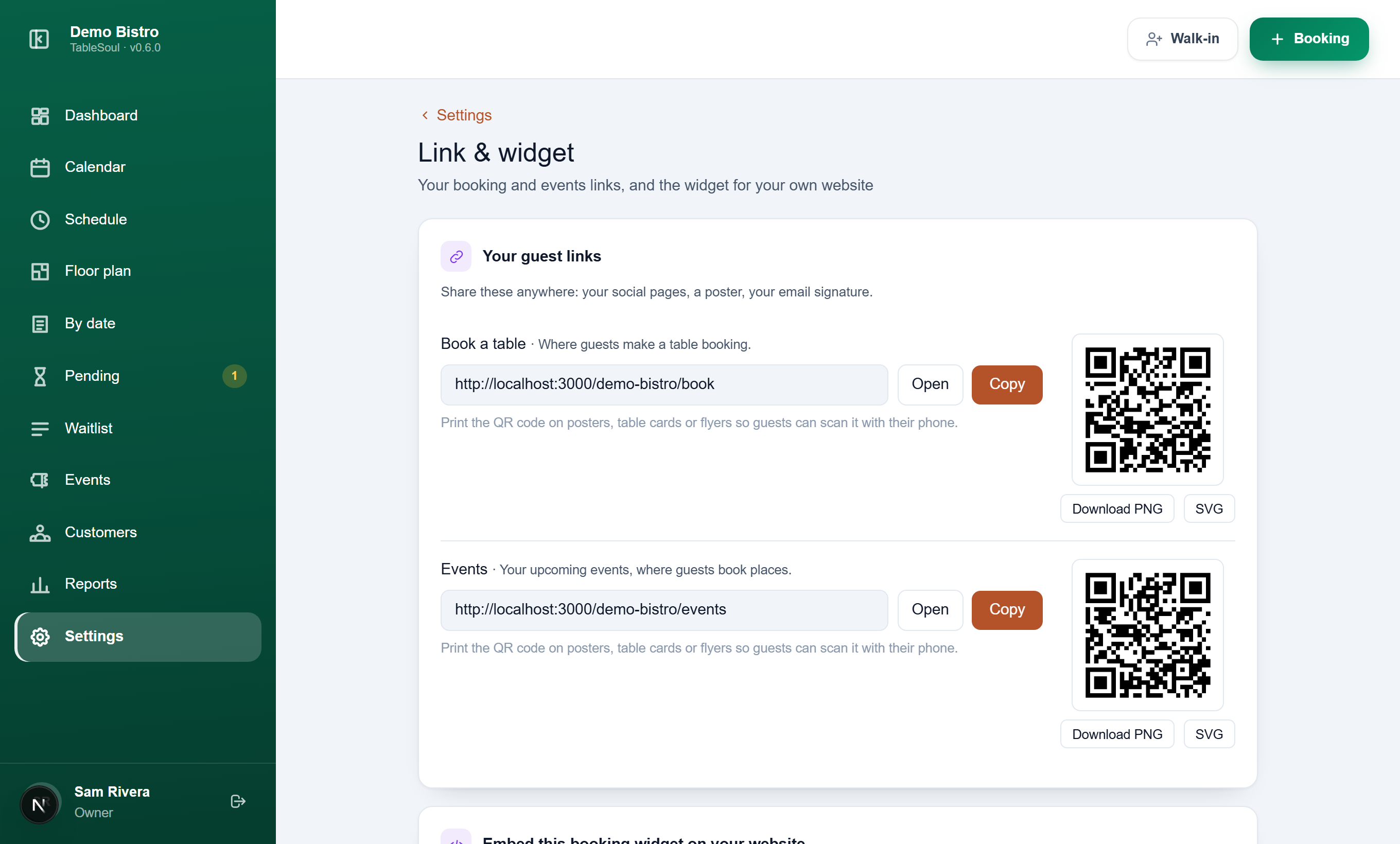 Your guest links and QR codes
Your guest links
Share these on social pages, in your email signature or on a poster.
- Book a table: where guests make a table booking.
- Events: your upcoming events, where guests book places. Only shown if your plan includes events.
Each link has Open and Copy buttons.
QR codes
Beside each link is a QR code. Press Download PNG or SVG, then print it on posters, table cards or flyers so guests can scan it with their phone.
Put the booking form on your website
Under Embed this booking widget on your website:
- Press Copy snippet.
- Paste it into your site's HTML wherever you want the form to appear. It works in WordPress, Wix, Squarespace and any plain HTML page.
The snippet looks like this:
<div data-booking-widget data-restaurant-slug="your-venue"></div>
<script src="https://your-address/embed.js"></script>
The form fits the width of its space and grows to fit its content.
Show your events on your website
If your plan includes events, Show your events on your website gives a second snippet. Paste it in the same way. Guests choose an event and the booking page opens in a new tab, because card payments can't run inside another site's page.
Tip: The
data-restaurant-slugpart must stay exactly as it is, or nothing will appear.
Did this answer your question?