Customise your guest emails
Set the greeting, sign-off, footer and a temporary notice for all guest emails, and edit individual emails with a live preview.
Updated 18 October 2026Managers and owners only
Every email your guests receive uses one layout with your logo and colours. In Settings > Emails you can change the wording without touching the booking details, link or amounts, which TableSoul always fills in for you.
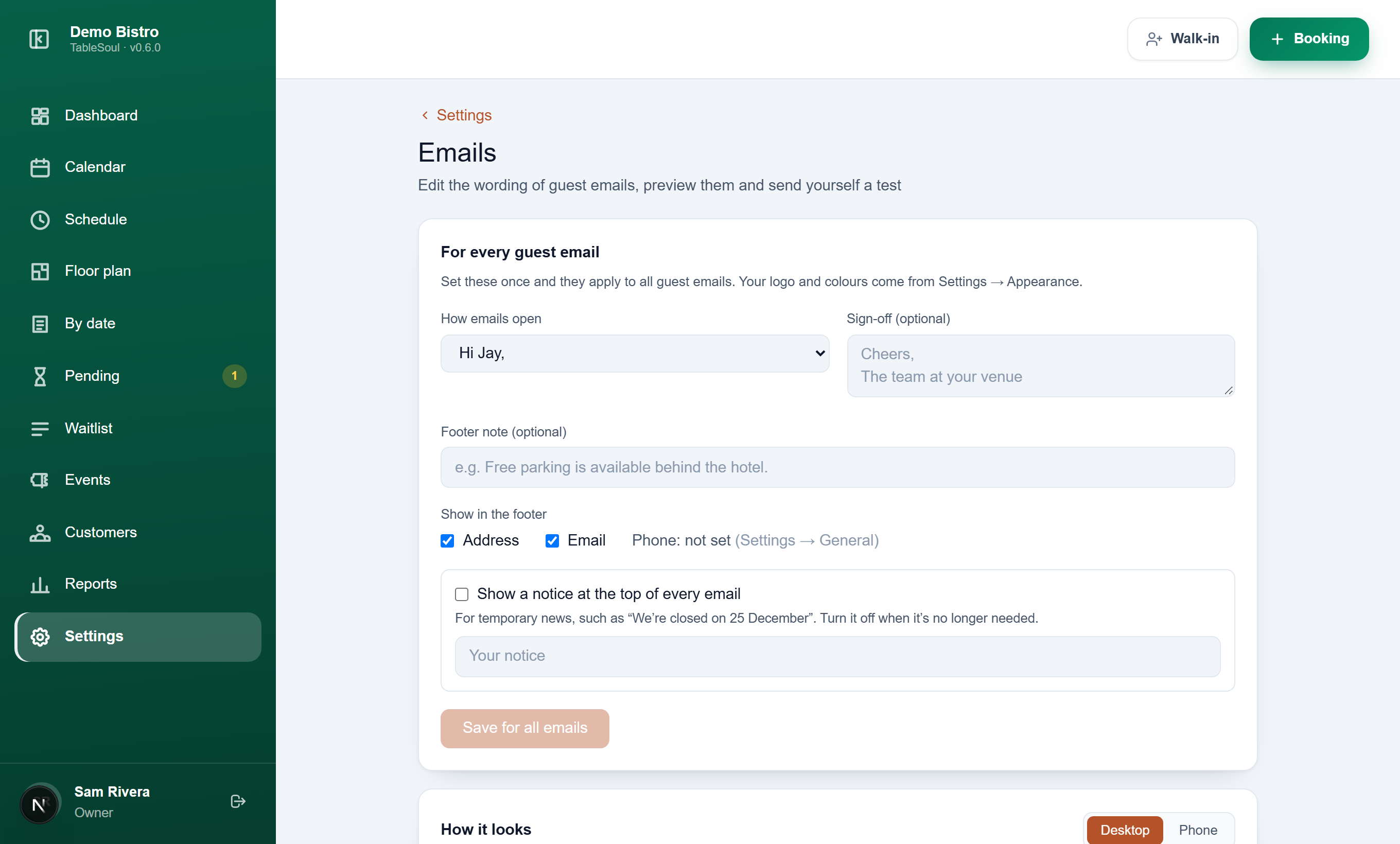 Email settings with the live preview
For every guest email
Set these once and they apply everywhere.
- How emails open: Hi {name}, Hello, Dear, Hey, or no greeting.
- Sign-off (optional): for example "Cheers, The team at the Farmers Arms" (up to 200 characters).
- Footer note (optional): for example "Free parking is available behind the hotel."
- Show in the footer: your Address and Email, and your Phone (set in Settings > General).
- Show a notice at the top of every email: for temporary news such as "We're closed on 25 December." Choose to keep it showing until you turn it off, or Stop showing it after a date (with buttons for 1 week, 2 weeks or 1 month). After the end date it removes itself.
Press Save for all emails. A preview under How it looks updates as you type, with Desktop and Phone views.
Your logo and colours come from Settings > Appearance. See Add your logo and brand colour.
Edit an individual email (advanced)
Most venues never need this. Under Edit individual emails, find the email (the common ones are listed, and Show all reveals the rest) and press Edit & preview.
Emails are grouped as Table bookings, Waitlists, Events and Group payments, and ones you've changed show Customised.
You can change:
- Subject line and Heading.
- Message. A blank line starts a new paragraph. Put two asterisks around words to make them bold. The greeting and sign-off are added for you.
- Button text, for emails that have a button.
Click a detail chip such as {guest}, {venue}, {date} or {party} to insert something that changes for each guest. A detail that isn't allowed for that email shows a red error and can't be saved.
Buttons:
- Save wording
- Send me a test: sends "[Test] subject" to your own email so you can see it in your inbox.
- Reset to default: puts the original wording back. Anything you haven't changed keeps following future improvements.
Start again
Reset all emails to default removes every customised email and the shared settings above. It can't be undone. Your logo and colours aren't touched.
Did this answer your question?