Add your logo and brand colour
Upload a logo, pick one brand colour and choose a booking page theme, so guests see your venue everywhere.
Updated 18 October 2026Managers and owners onlyDepends on your plan
Open Settings > Appearance. Custom branding is part of some plans. If yours doesn't include it you'll see locked cards marked Pro.
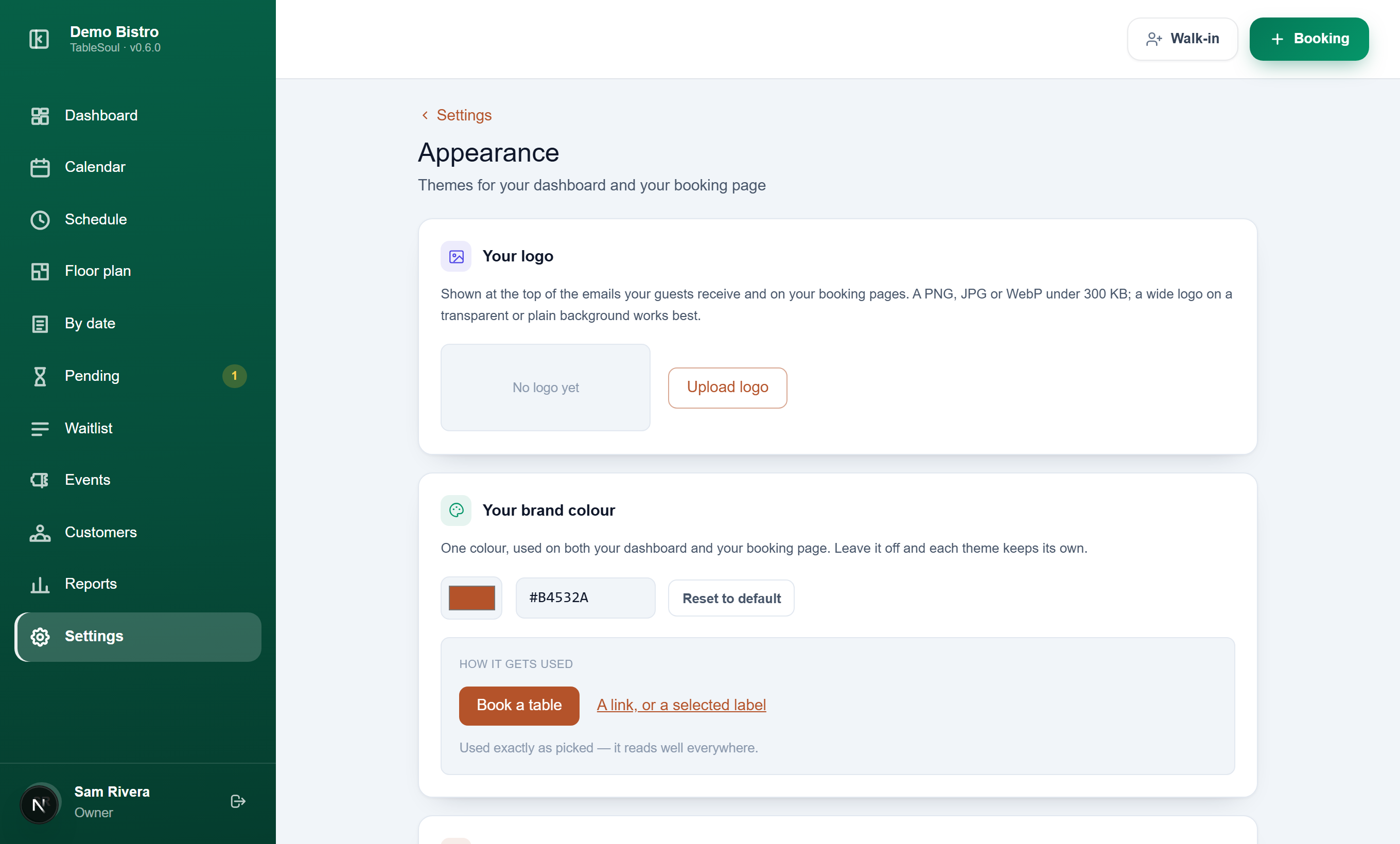 The Appearance settings
Your logo
Your logo appears at the top of guest emails and on your booking pages.
- Press Upload logo (or Replace logo).
- Choose a PNG, JPG or WebP file under 300 KB. SVG files aren't accepted.
- A wide logo on a plain or transparent background works best.
Press Remove logo to take it down.
Your brand colour
One colour is used on both your dashboard and booking page.
- Use the colour picker, or type a 6-digit code such as
#6B2737. - Leave it empty and each theme keeps its own colours. Reset to default clears it.
- A preview ("How it gets used") shows a Book a table button and a link.
TableSoul keeps things readable: the button uses your exact colour, links and labels may use a slightly deeper shade, and the button text switches between white and black as needed.
Press Save in the bar at the bottom.
Your booking page theme
Choose how the guest-facing pages look:
| Theme | Feel |
|---|---|
| Linen | Warm oat and burgundy. The original. |
| Paper | White and grey. Quiet, and lets a brand colour carry the page. |
| Noir | Near-black and brass. Fine dining after dark. |
| Slate | Soft charcoal. Darker than a page, gentler than Noir. |
Press Preview on a theme to see it. The theme also applies to your staff sign-in page and to the cancel and reschedule links in guest emails.
Did this answer your question?