Remove a staff member who has left
Switch off their access straight away while keeping their history, or delete them permanently.
Updated 20 October 2026Owners only
Do this the same day someone leaves. It's the quickest way to keep your venue's guest data safe.
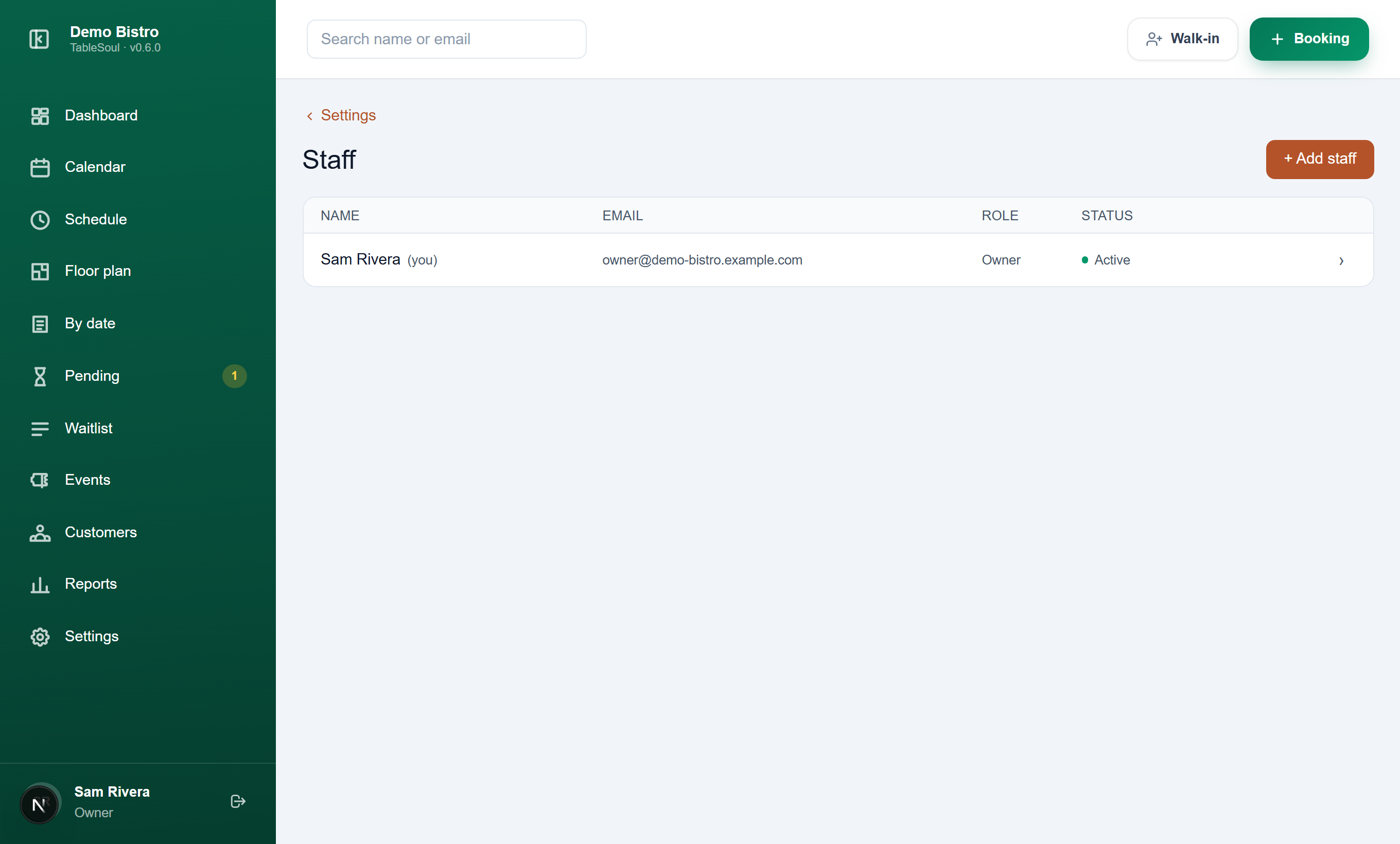 The Staff page
Deactivate (recommended)
- Open Settings > Staff and find the person (use "Search name or email").
- Open them and press Deactivate. Add an optional reason.
- Confirm.
What changes:
- They can no longer use TableSoul. Even if they're signed in somewhere, their next action is refused and they see "Not authorized".
- They stop receiving staff alert emails.
- Their name stays on the shift notes and bookings they handled, so your history makes sense.
- It frees up a seat on your plan's staff limit.
You can Reactivate them later with the role they had, if your staff limit allows.
Delete (permanent)
Delete removes their record entirely and can't be undone. Only use it if the record shouldn't be kept at all. You'll be asked to confirm.
Rules
- You can't deactivate or delete your own account.
- An owner can't demote themselves, so make someone else an owner first if you're leaving.
Also think about
- Shared logins: if anyone shared a password, ask them to use Forgot password? to set a new one: Sign in, reset your password and accept an invite.
- Stripe: only the owner connects Stripe. If an owner leaves, make sure another owner exists first.
- Notifications: check Settings > Notifications hasn't got a personal email or key from the leaver.
Did this answer your question?