Put your booking QR code on posters and tables
Download your QR codes and use them where guests will scan them.
Updated 20 October 2026Managers and owners only
Get the code
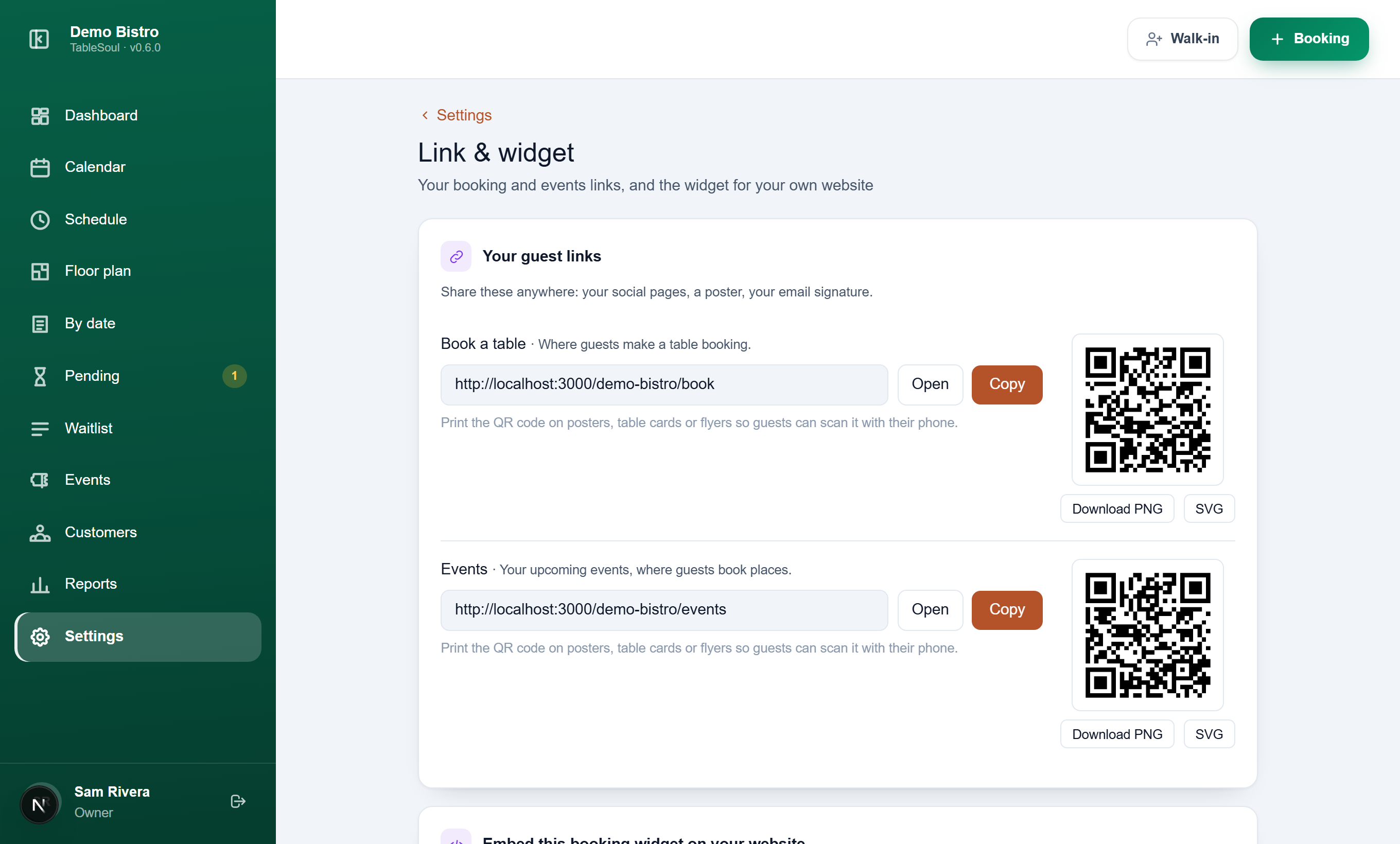 Your guest links and QR codes
- Open Settings > Link & widget.
- Under Your guest links, find Book a table (and Events if you have them).
- Beside the QR code, press Download PNG for everyday use, or SVG for a printer or designer. SVG stays sharp at any size.
Where to use it
- A window or door sticker: "Book a table".
- Table cards, so guests can book their next visit before leaving.
- Menus and receipts.
- Flyers and posters, especially for events (use the Events code).
- Your social media and email signature: use the link and Copy instead.
Printing tips
- Print the code at least 2.5 cm (1 inch) wide, with a blank border around it. Don't crop it.
- Keep strong contrast: dark code on a light background.
- Don't place it over a busy photo or a shiny surface.
- Always test it with your own phone before printing a hundred copies.
Use the right link
Each code opens a different page: Book a table opens your booking page, and Events opens your events list. If you use the events code on a poster for one event, guests still choose from the list.
Reminder about local testing
If you're trying this on a test copy of TableSoul, the code might point at a development address that phones can't open. Always check the code on your live site.
See also Share your booking link, QR code and website widget.
Did this answer your question?