Welcome a new staff member
Invite them, choose the right role, and what to show them on day one.
Updated 20 October 2026Owners only
Invite them
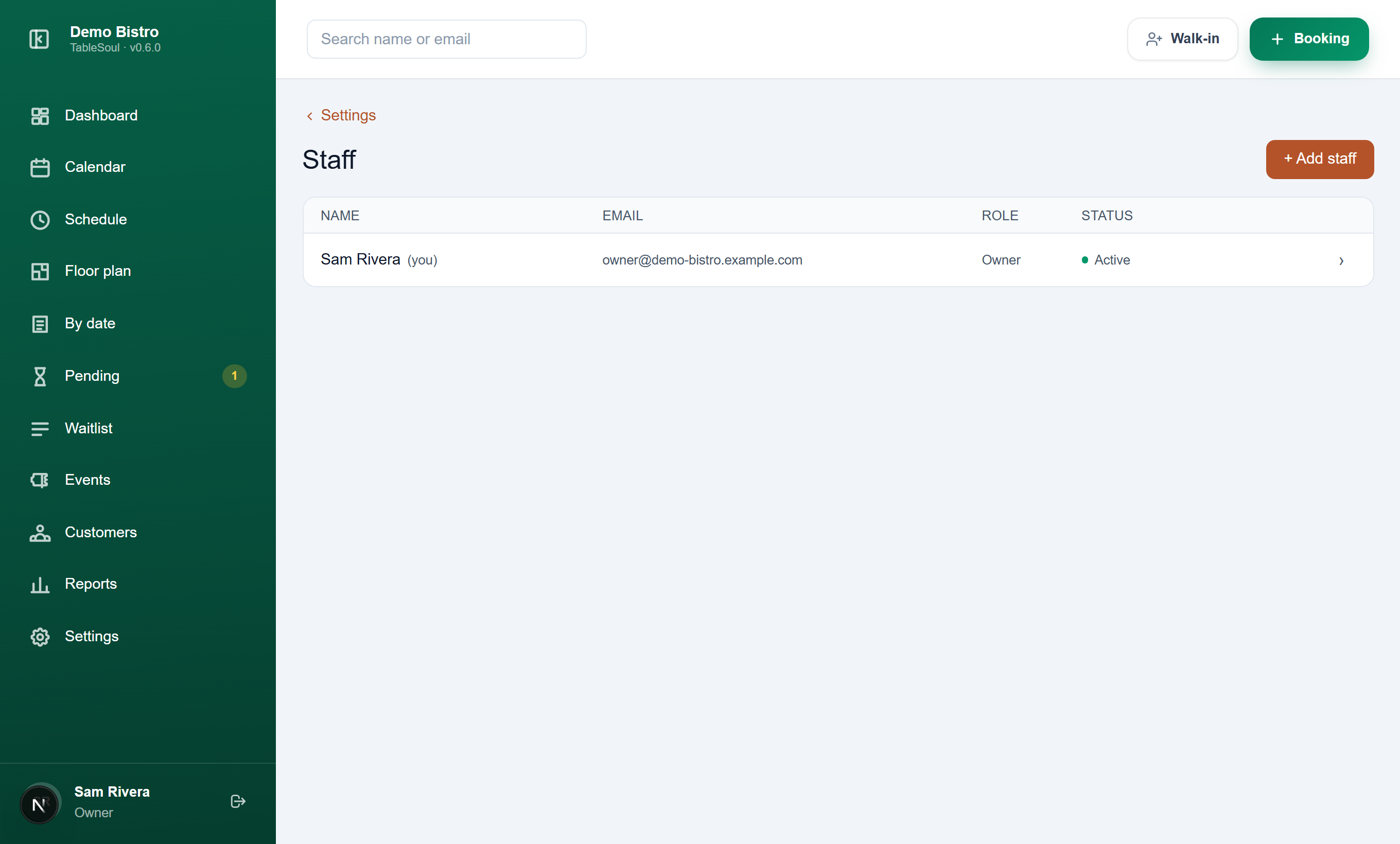 The Staff page
- Open Settings > Staff (owners only) and press + Add staff.
- Enter their Name and Email and choose a Role:
- Staff for the floor and bookings.
- Manager if they should also manage tables, services, events, refunds and settings.
- Owner only for people who should control billing and the team.
- Press Send invite.
They receive an email with Set your password. They choose their own password, and you never see it. The link lasts 7 days by default. If it expires, press Resend invite. See Manage your team, roles and invites.
If you hit your plan's staff limit, the invite is refused. Pending invites count towards it.
Day one for them
Give them these, in order:
- Sign in, reset your password and accept an invite
- Quick start guide and Find your way around the staff app
- Take a phone booking and Seat a walk-in
- Use the floor plan
- Start-of-shift checklist
Tell them about the round help button at the bottom right of every page, which finds these guides.
Things to explain
- Alerts: staff alerts go to the email address on their record: Staff alerts and notification settings.
- Cancelling or marking a no-show doesn't message the guest unless they tick the box.
- Who to ask when something isn't in their menu: A menu item or setting is missing.
Did this answer your question?