Start-of-shift checklist
A quick routine to see what's ahead, clear anything waiting and read the team's notes.
Updated 20 October 2026
Five minutes at the start of a shift saves a lot of trouble later.
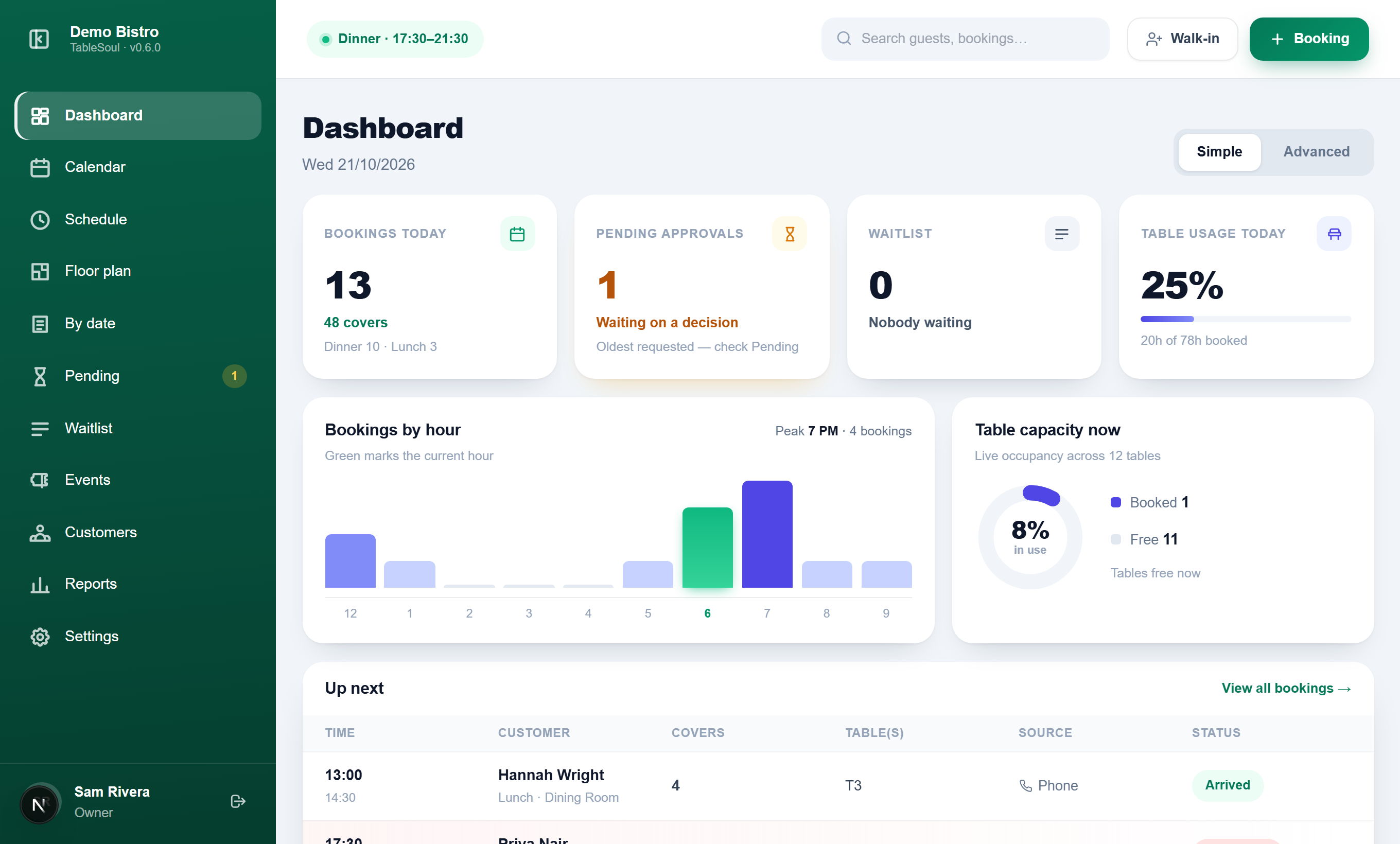 The Dashboard at the start of a shift
- Open the Dashboard. Check Bookings today, the covers, and the Bookings by hour chart to see when it will be busy. See Find bookings.
- Clear Pending. The Pending menu item shows a number when requests are waiting. Approve or decline each one so guests aren't left waiting. See Approve or decline pending bookings.
- Read the shift notes. On By date, read the Shift notes panel for anything left by the last team. See Leave notes for the team with Shift notes.
- Check special requirements. On the Schedule or By date, look for tags (birthdays, allergies) and notes. See Note a dietary requirement or allergy.
- Check the waitlist. If your plan has it, a number beside Waitlist means people are hoping for a table. See Use the table waitlist.
- Look at tomorrow. The Calendar shows how busy the coming days are, and whether anything needs preparing.
- Events on today? Open Events, check who is Awaiting payment and whether tables are assigned. See Manage the attendee list.
Tip: If a table is out of action, lock it from Settings > Tables so online guests can't be given it. See Block a table for a while.
Did this answer your question?