Print the day's bookings (run sheet)
Print a clear one-page list of the day's bookings for the host stand or the pass, with a box to tick off arrivals.
Updated 22 October 2026
Some venues still like a piece of paper on the host stand or at the pass. The run sheet is a plain, black-and-white list of one day's bookings that prints cleanly on A4.
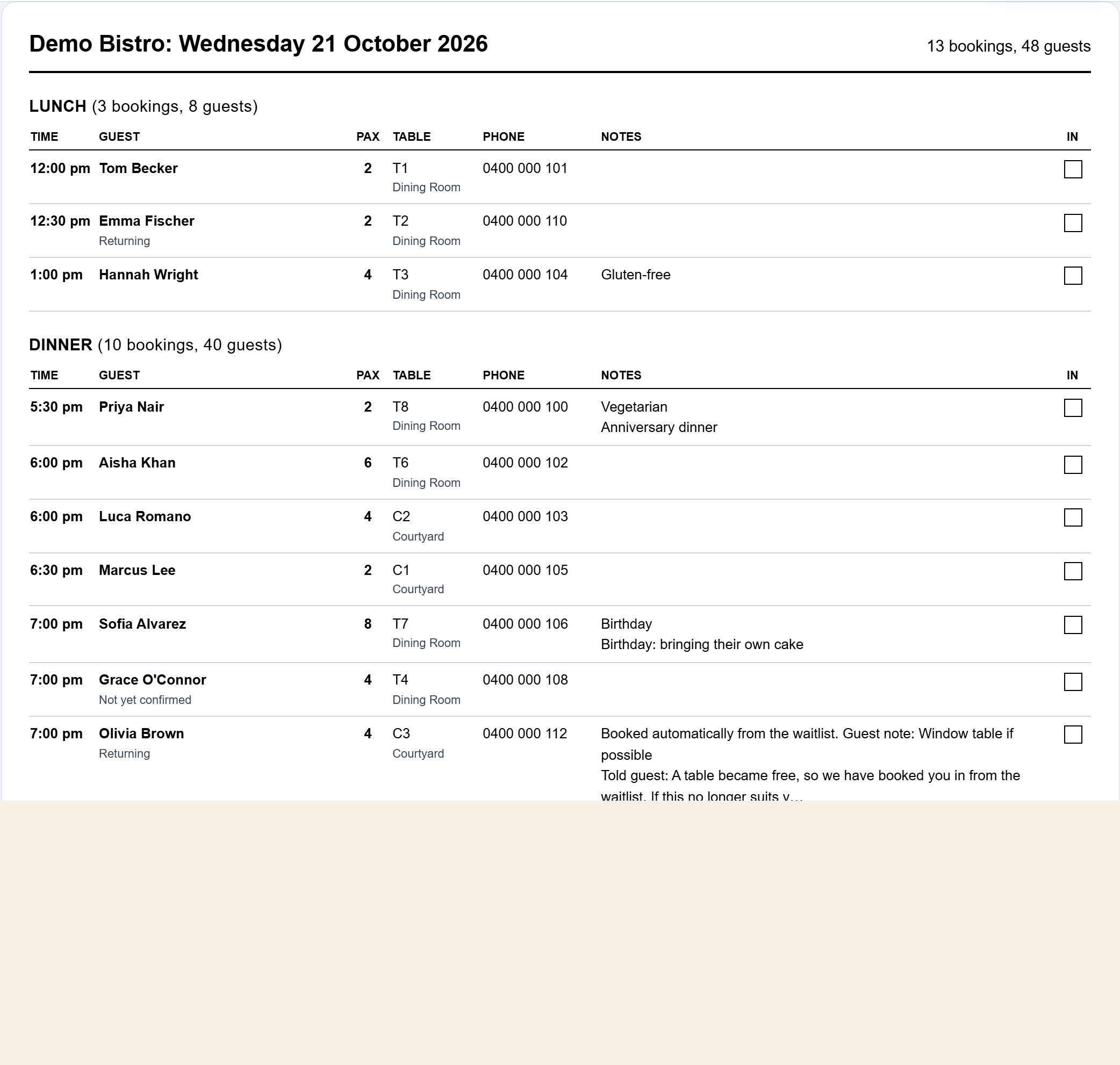 The run sheet
Print it
- Go to By date and choose the day.
- Press Print run sheet. It opens on the same page (use Back to By date to return).
- Check the day at the top (you can change the date there).
- Choose what goes on the sheet (see below), then press Print. In the print window you can also choose Save as PDF.
Only the sheet prints. The menu, buttons and the menus are left off.
Choose the columns and services
Above the sheet, beside Print, are two menus: Services and Columns. Tap one to open it and tick or untick rows. Everything is on to begin with, and All in a menu switches everything back on.
- Columns: Time, Guest, Guests (pax), Table, Phone, Notes and the Arrived tick box. Untick any you don't want on the paper, for example Phone if the sheet will be on show to guests, or the tick box if you don't need it. The sheet re-flows to fill the page. Your choice is remembered on that computer for next time.
- Services: the services that have bookings that day (for example Lunch and Dinner). Untick one to leave it off, for example to print only Dinner. The totals at the top and for each service follow what is ticked. Services always start with all ticked when you open a day.
What's on it
- The venue, the date, and the totals: bookings and guests.
- One block per service (for example Lunch and Dinner) with its own totals.
- For each booking: the time, the guest, the party size, the table and its area, the phone number, and notes.
- A small box at the end of each row to tick when the guest arrives.
Notes include the booking's tags and the guest's saved tags (dietary needs, occasions), the booking notes, any message you wrote to the guest, and a paid deposit. Under the guest's name you may see Returning, Not yet confirmed, Waiting on deposit or Missed a booking before, so the host knows before the guest arrives.
Good to know
- Cancelled, declined and no-show bookings are left off. Pending requests are on the sheet, marked Not yet confirmed.
- It shows the day as it is at the moment you open it. If you take another booking, reload the page to bring it up to date.
- Filters you had on in By date don't carry over: the sheet starts with every service and every column. Use the Services and Columns menus on the sheet instead.
- Anyone who can open By date can print it. For another day, change the date at the top of the sheet.
- Nothing is saved on the server: the column choice lives only in that browser.
Did this answer your question?