Close the venue, or just one service, for a day
Use a special date to stop bookings for a holiday, a private hire or a staff day.
Updated 20 October 2026Managers and owners only
Close everything
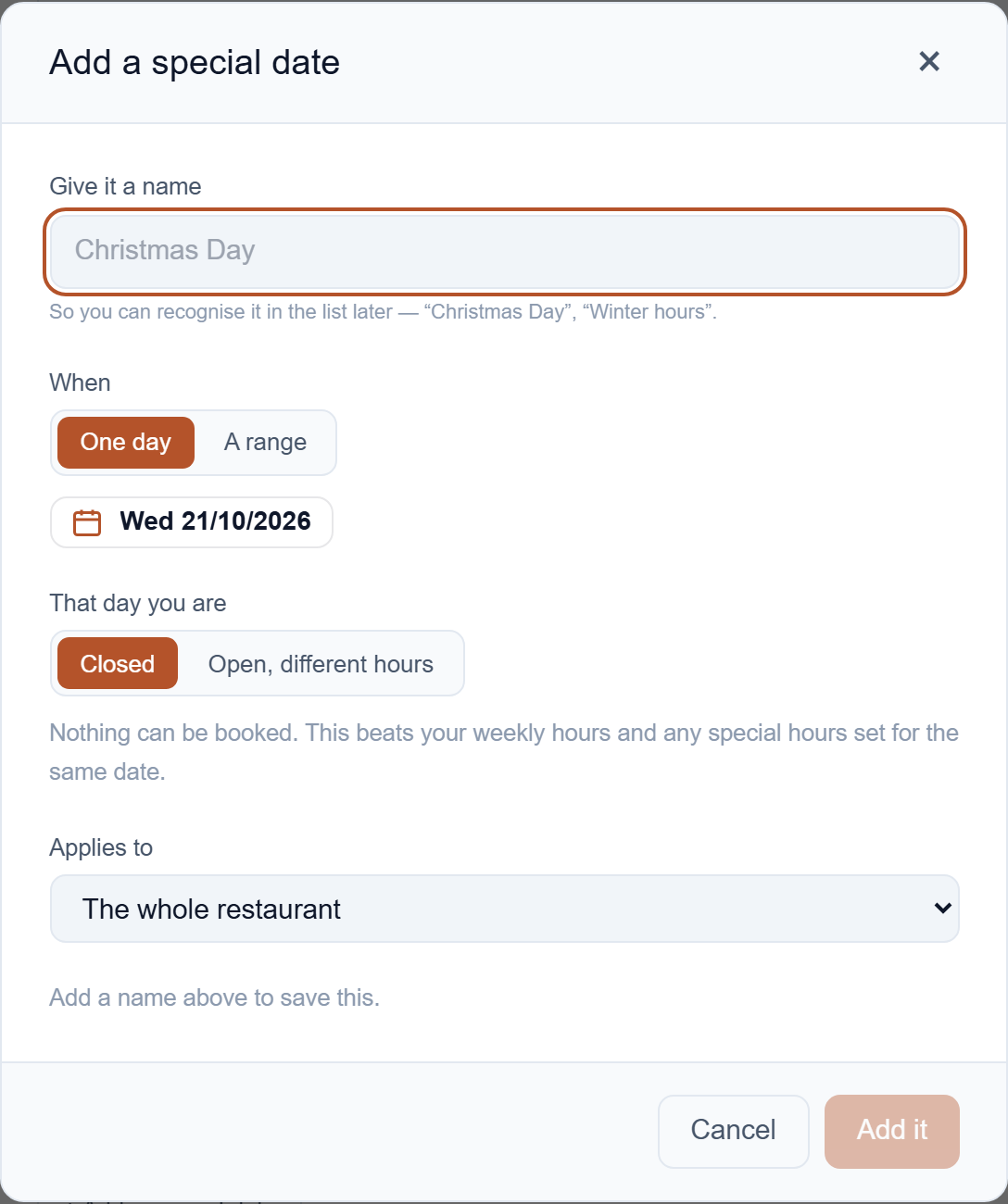 Adding a special date
- Open Settings > Opening hours.
- Under Special dates, press + Add a special date.
- Give it a name, for example "Christmas Day".
- For When, choose One day, or A range for several days.
- For That day you are, choose Closed.
- For Applies to, choose The whole restaurant.
- Press Add it.
Online booking stops showing times for that date immediately. Closed beats everything, including your weekly hours.
Close only one service
For example, you're closed for lunch but open for dinner: choose Applies to > [service] only and Closed. That service stops taking bookings that day and the others carry on.
Open with different hours
For New Year's Eve or a shorter day, choose Open, different hours and set the times. Special hours for a date replace your weekly hours for that date.
What happens to existing bookings
Closing a date doesn't cancel bookings already on it. Check the Calendar or By date for that day and contact guests yourself. If you cancel them, you can tick Email [name] that it's cancelled. See Change, cancel or mark a booking.
Edit or remove it
Click the special date in the list to edit it, or press Remove to reopen the day.
Tip: Plan ahead: add next year's holidays in one sitting. More: Set your opening hours and special dates.
Did this answer your question?