Move a booking to another table
Change a booking's table, or its time and date, and let the guest know.
Updated 20 October 2026
Change the table
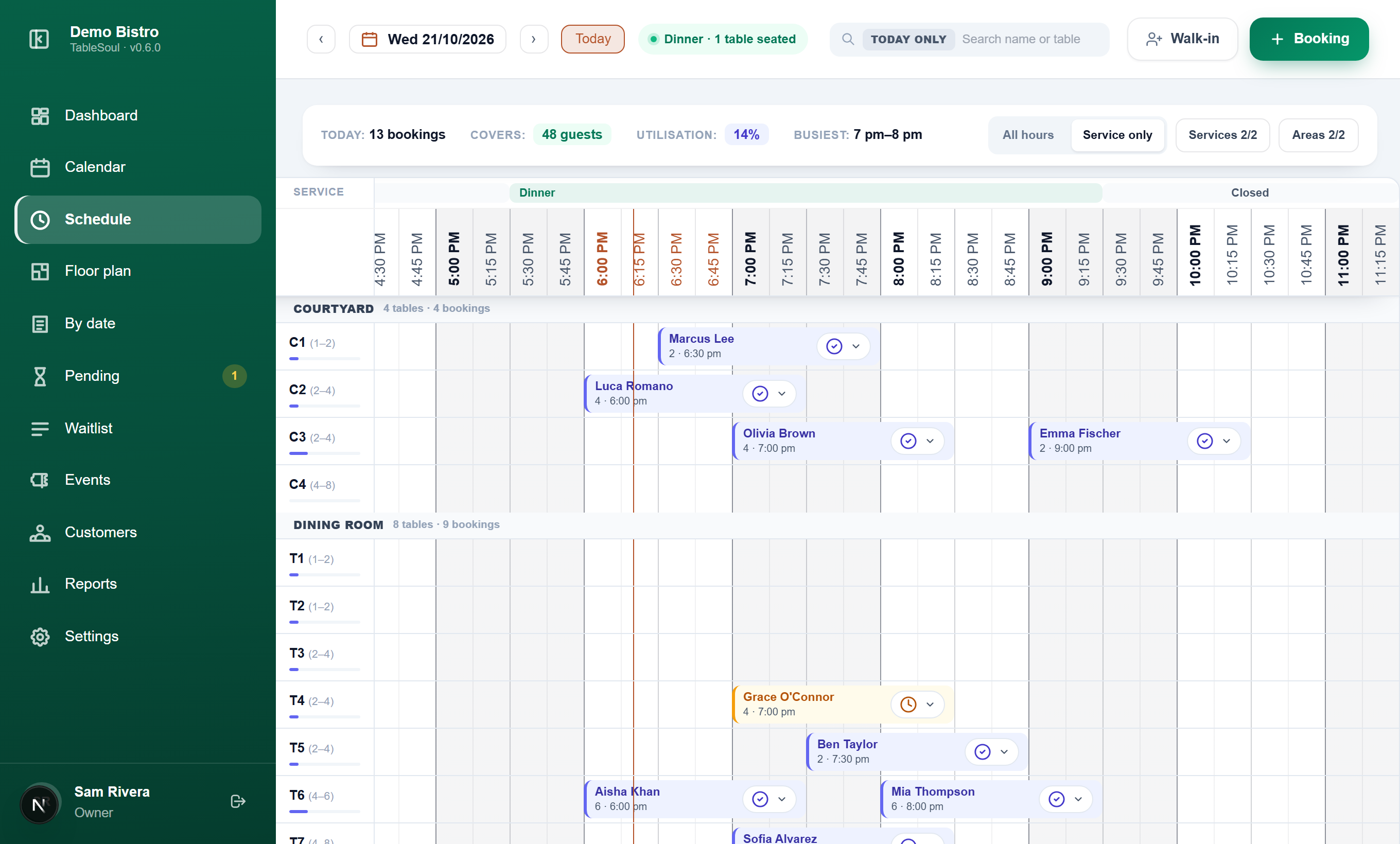 Click a booking on the Schedule to edit it
- Click the booking (on the Schedule, or open its card from By date or the Dashboard) and press Edit.
- Open the Table list. Choose another table. Tables that are busy at that time, or that don't fit the party, are marked and can't be chosen.
- Leave Email [name] about this change ticked only if the guest should hear about it. A table swap usually doesn't need an email, so untick it.
- Press Save changes.
If it says "That table isn't free at the new time", pick another table, or move the other booking first.
Change the time or date
In the same Edit window, change Date and Time. TableSoul checks the table is free at the new time and keeps a note of the original time. Tick the email box so the guest is told the new time: they get a "Your booking has moved" email.
Seat someone on a different table at the last minute
On the Floor plan, click the guest's table to open their booking, then press Edit and change the table. The floor plan updates straight away.
Related
- Guests can also move their own booking from their link: How guests change or cancel a booking.
- To see free tables at a glance: Use the floor plan.
Did this answer your question?